

Key Takeaway: The best Chrome extensions for students to study smarter in 2026 cover writing, research, citations, focus, and tab management, but choosing the right ones means weighing permissions, school compatibility, and whether each tool actually saves time.
- Grammarly and LanguageTool are the top writing extensions, but neither should be used to rewrite your work since AI rewrites can trigger detection tools
- Web Highlights, Evernote Web Clipper, and Raindrop.io handle different capture needs: highlights, full pages, and saved articles respectively
- Cite This For Me and Zotero Connector both generate citations, but always manually verify dates, author names, and titles before submitting
- School Chromebooks on an allowlist model block most extensions by default, including commonly used ones like Grammarly
- Every extension install should include a permissions check: citation tools shouldn’t need access to your full browsing history
- Walter Writes and Proofademic are recommended for final-draft integrity checks, especially if AI was used anywhere in the writing process
You probably already have Chrome open with twelve tabs right now. There’s a half-done essay, three articles to read, a YouTube video that you thought was “related” to your studies, and at least one tab that you have totally forgotten about.
Extensions won’t close these tabs for you, but they can help you get more out of each one, make sure your writing is clear and concise, and help you avoid wasting time on sources you really did want to look into.
This guide about the best Chrome extensions for students in 2026 will surely help you in finding the right extensions for you, as everything is classified based on what you need them for. We have also provided a set of supporting tools to make your class work more manageable.
Quick Picks for 2026 (Best Chrome Extensions by Goal)
If you plan to install only five to seven extensions, start with these.
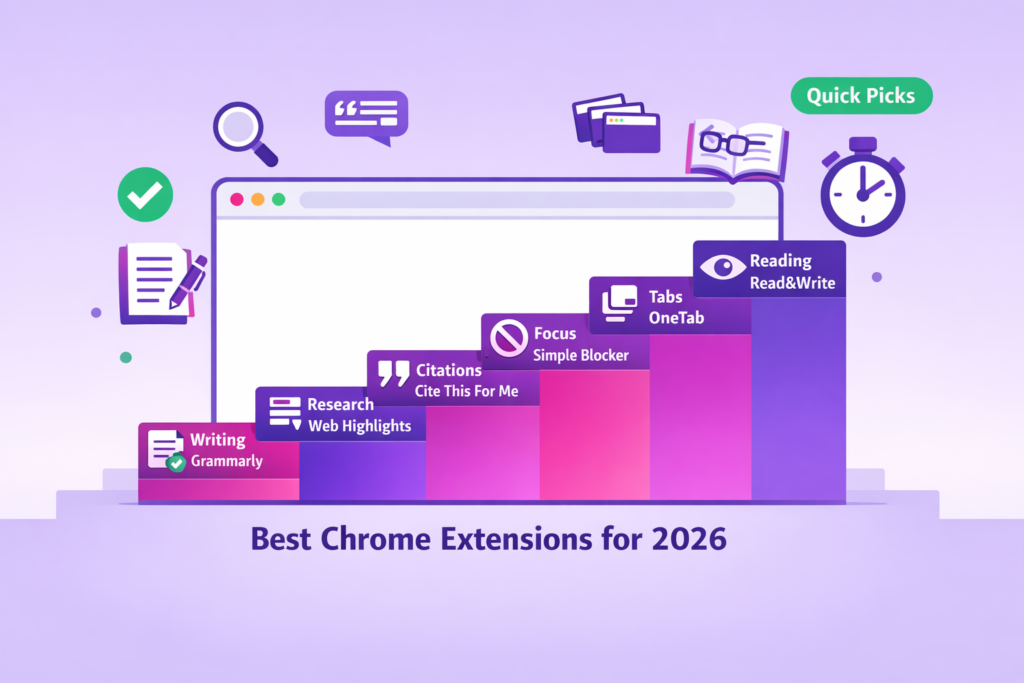
- Best for writing and grammar: Grammarly
- Best for research capture: Web Highlights
- Best for citations: Cite This For Me
- Best for focus: Simple Blocker
- Best for tab overload: OneTab
- Best for accessibility and reading: Read&Write
- Best for screen recording: Screencastify
- Best for time tracking: Clockify
This is where we begin with the core student workflow as it pertains to research to submission. All other aspects of this guide are built upon these basics.
If you use AI tools to help draft or research, you will also want a way to check your final writing before submitting with a reliable AI Detector that handles final integrity and clarity checks, all in one place.
Chrome Extensions for Students at a Glance
| Extension | Best For | Free or Paid | Works on School Chromebooks? | Permissions to Watch | Pairs Well With |
| Grammarly | Grammar and writing clarity | Yes, limited | Usually | Read and change data on sites you visit | Text Blaze, Walter Writes |
| LanguageTool | Grammar alternative, multilingual | Yes, limited | Usually | Read data on sites you visit | Grammarly (use one, not both) |
| Text Blaze | Writing templates and snippets | Yes, limited | Depends | Read and change data on the focused site | Grammarly |
| Web Highlights | Highlighting and research capture | Yes, limited | Usually | Read and change data on sites you visit | Evernote, Cite This For Me |
| Evernote Web Clipper | Save and organize full pages | Yes | Depends | Read and change data on sites you visit | Web Highlights, Pocket |
| Raindrop.io | Save and organize articles for later | Yes, unlimited bookmarks | Usually | Read data on sites you visit | Evernote Web Clipper |
| Cite This For Me | One-click citations (APA/MLA/Chicago) | Yes, limited | Usually | Read data on the current site | Zotero, Web Highlights |
| Zotero Connector | Academic citation management | Yes | Depends | Read and change data on sites you visit | Cite This For Me |
| Simple Blocker | Focus and distraction blocking | Yes | Depends | Read and change browser history | Clockify |
| uBlock Origin (Lite) | Ad blocking (MV3 compatible) | Yes | Depends | Read and change data on sites you visit | Simple Blocker |
| OneTab | Tab consolidation | Yes | Usually | Read and change data on all sites | Todoist |
| Clockify | Time tracking | Yes | Usually | Read data on sites you visit | Todoist, OneTab |
| Todoist | Task management | Yes, limited | Usually | Read data on the current site | Clockify |
| Screencastify | Screen recording for projects | Yes, limited | Usually | Access camera, microphone, screen | None needed |
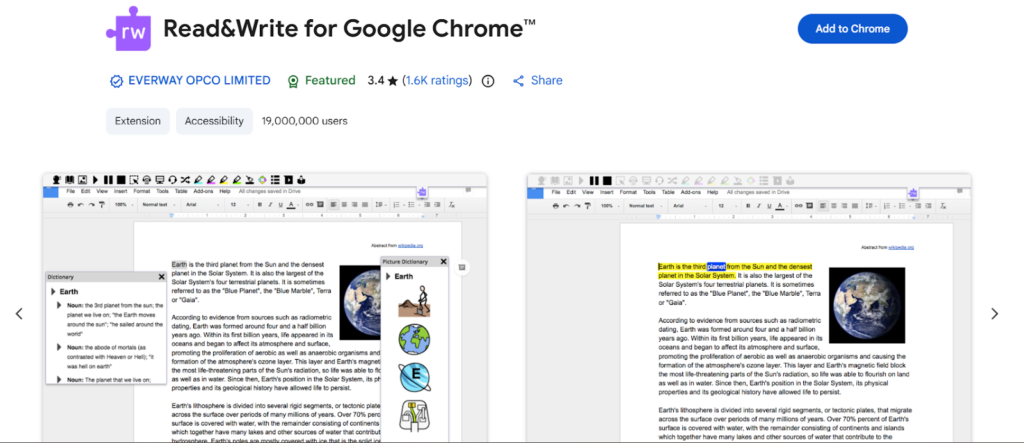
| Read&Write | Text-to-speech and accessibility | Free for students | Usually | Read and change data on sites you visit | OpenDyslexic |
| OpenDyslexic | Dyslexia-friendly font overlay | Yes | Usually | Read and change data on sites you visit | Read&Write, BeeLine Reader |
How We Chose These Browser Extensions (What Matters in 2026)
Not every extension that ranks high on the Chrome Web Store is worth installing. Here is what we evaluated for each one.
- Workflow impact: Does it save real time on a real student task, or does it just add another thing to manage?
- Friction level: If it takes ten minutes to set up for two minutes of benefit, students will not use it consistently.
- Privacy and permissions: Every extension you install gets access to some part of your browser. Some ask for far more than they need.
- School compatibility: An extension that will be blocked by your school Chromebook won’t work for you. We have tested each one for blocking.
- Maintenance and updates: Extensions that do not update to Manifest V3 (the current platform of Chrome’s new extensions) may cease to function properly. Only extensions that we believe are currently being kept up to date with regular maintenance are recommended.
Mostly, guides do not consider the permission risk trade-off at all. An extension that can read and change all your data on all websites is a lot riskier than one that only reads the page. This difference is important, especially if you use shared or school devices.
A 60-Second Safety Check Before You Install Anything
- Before you click “Add to Chrome,” go through this briefly.
- Install only from the Chrome Web Store. Do not obtain them from third-party websites or via a direct download.
- Verify the developer name against the organization providing the extension.
- Before allowing an extension, check what permissions it wants.
- If your browser has a simple extension for searching and the extension wants access to all of the content of each webpage, that is something to be suspicious about.
- Lastly, immediately perform Chrome’s Safety Check when you install anything new. This will flag extensions with known security flaws.
Writing and Grammar Extensions (Write Cleaner, Faster)
Good writing extensions do not write for you. They catch the things you miss when you have been staring at the same paragraph for an hour.
Grammarly
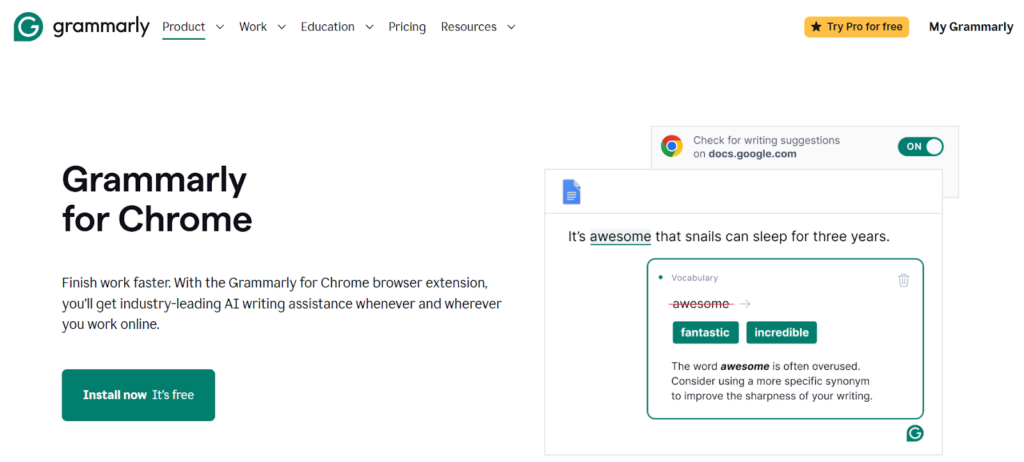
Best for: All students who need instant grammar, clarity, and tone checking in every piece of writing they do.
Key features:
- Works inside Google Docs, Gmail, and most web-based writing tools
- Free plan covers grammar, spelling, and punctuation
- Premium adds tone detection and advanced clarity suggestions
Limitations:
- Free plan skips tone detection and deeper clarity feedback
- Using Grammarly’s AI rewrite features to rephrase or regenerate paragraphs can trigger AI detection tools at institutions that monitor for AI-assisted writing
- Best used to polish your own words, not replace them
Chromebook likelihood: Usually permitted. A relatively common extension that is typically permitted by school-managed devices.
Permissions to watch: Read and edit access to websites you are accessing. Required to function within web-based applications, but has a larger scope of permissions compared to many other items on this list. Something to be aware of when installing on a shared or school-owned device.
LanguageTool
Best for: Students who write in multiple languages, as well as students looking for alternatives to Grammarly.
Key features:
- Supports over 25 languages
- Catches style and grammar issues across web-based editors
- Free plan covers core grammar and spelling checks
Limitations:
- Advanced style suggestions are locked behind the premium plan
- Slightly less polished inside Google Docs compared to Grammarly
- Not as widely recognized by schools, so Chromebook approval is less predictable
Chromebook likelihood: Typically allowed, but it is less likely to be approved beforehand if we compare it to Grammarly.
Permissions to view: The tool has permission to know what sites you have been viewing. It will allow for a lower risk of exposure than Grammarly.
Text Blaze
Best for: Students who write repetitive structures like essay intros, email templates, or standard academic phrases.
Key features:
- Create custom shortcuts that expand into full text blocks
- Works across Gmail, Google Docs, and most web text fields
- Free plan covers basic snippet creation with no account needed
Limitations:
- Requires upfront time to set up shortcuts before it saves you time
- Less useful for one-off writing tasks
- Advanced features like form-based snippets require a paid plan
Chromebook likelihood: It has less common approval from schools than many of the other types of grammar tool approvals available.
Permissions to watch: The tool can only read and write data about the website being viewed. This limits the scope of the permissions for viewing compared to many other writing extensions.
Research Capture and Note-Taking Extensions (Don’t Lose Your Sources)
The worst research experience is finding a perfect source, forgetting to save it, and spending forty minutes trying to find it again three days later. The following Chrome extensions will end that frustration.
Web Highlights
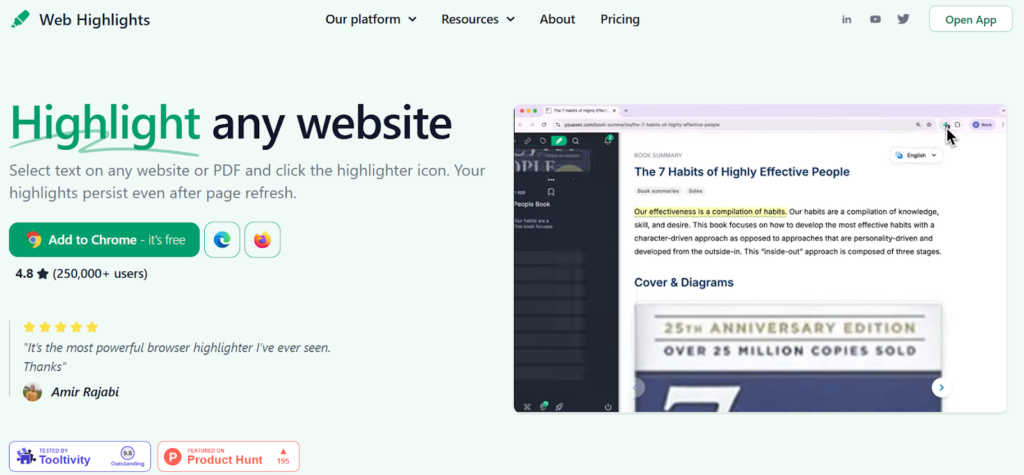
Best for: Students who want to mark up research pages and find their highlights later.
Key features:
- Highlight any text on any webpage and save it to a personal library
- Searchable highlight archive organized by source
- Syncs across devices with a free account
Limitations:
- Free plan limits the number of saved highlights per month
- Does not capture full page content, only selected text
- The library can get cluttered without consistent tagging habits
Chromebook likelihood: Usually allowed by school administrators..
Permissions to watch: Can read and write data from websites you visit. Necessary for this extension to be able to highlight any web page.
Evernote Web Clipper
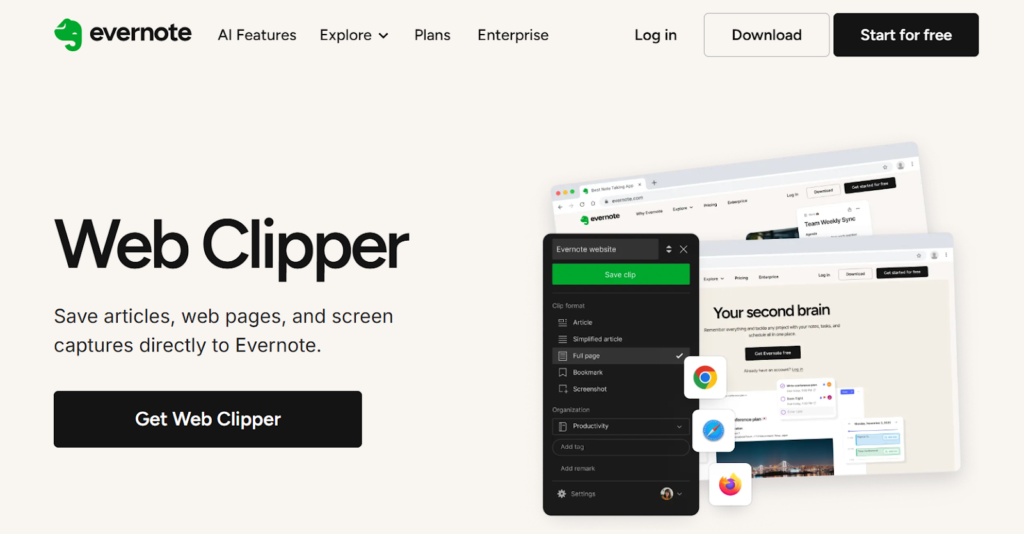
Best for: Students who are using Evernote and would like to clip entire web pages, screenshots, or clippings in Chrome.
Key features:
- Clip full articles, selected text, or screenshots into Evernote notebooks
- Tag clips on save for easy retrieval later
- Works across all major websites and Google Docs
Limitations:
- Requires an Evernote account to use
- Full functionality depends on your Evernote plan tier
- Can feel heavy for students who only need basic capture
Chromebook likelihood: Depends on your school’s policies regarding extensions.
Permissions to watch: Reads and modifies information from websites you are visiting. Typical for an application used in capturing.
Raindrop.io
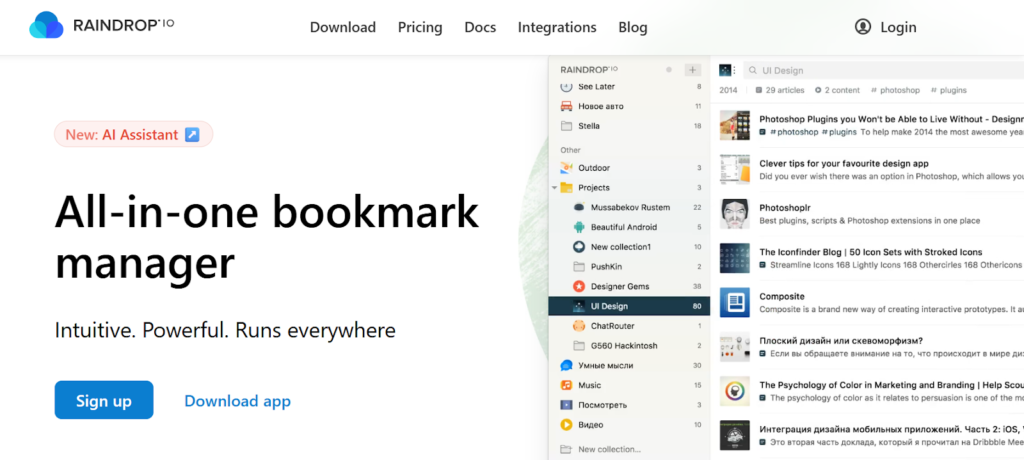
Best for: This is ideal for saving articles or webpages as references for future use, in a much more organized way than what was provided by Pocket.
Key features:
- Save any page with one click via the Chrome extension
- Organize saves into collections and tags for easy retrieval
- Free plan covers unlimited bookmarks synced across all devices
Limitations:
- Full-text search and an AI assistant are locked behind the Pro plan
- Slightly more setup than Pocket was for casual saving
- Offline reading requires the Pro plan
Chromebook likelihood: Generally allowed.
Permissions to watch: Accesses information about websites you have visited. The standard permissions for any type of bookmarking tool.
The “Capture, Organize, Write” Workflow That Actually Sticks
Here is a simple five-step process that works consistently.
- Web Highlights allows you to mark up important parts of an article as you are browsing through it.
- You can also save full articles if you want to read in detail on Raindrop.io.
- At the conclusion of your research, pull your highlighted points into Evernote and tag them with themes.
- When you begin writing, use the tagged notes from your previous research as the outline bullet points for your work.
- Before closing any tabs, pull the citation information from the article pages you referenced with Cite This For Me.
With this method, you will be able to locate your reference materials easily, organize them logically, and eliminate having to start working on an assignment without knowing where everything comes from.
Using this strategy by pairing it with other appropriate AI study tools for both writing and notetaking will enhance this workflow significantly, especially at times when there may be multiple assignments.
Citations and Referencing Extensions (Cite While You Browse)
Citation errors are one of the most common ways students lose marks they should not lose. These tools reduce that risk significantly.
Cite This For Me
Best for: Students who want to quickly generate an APA, MLA, Chicago, or Harvard citation from their web browser by clicking just once on a webpage.
Key features:
- Generates a formatted citation for any page with a single click
- Supports all major citation styles
- Free plan covers basic citation generation without an account
Limitations:
- Metadata pulled from pages is not always accurate. Dates, author names, and titles need manual verification before submitting
- The free plan has a limit on saved citation lists
- Not suitable as a standalone citation manager for large research projects
Chromebook likelihood: Usually allowed.
Permissions to watch: Reads data on the current site only. One of the lower-risk permissions on this list.
Zotero Connector
Best for: Students who are writing lengthy research-based papers that require an integrated citation management system, not just a single click citation generator.
Key features:
- Saves sources directly to your Zotero library while you browse
- Integrates with Word and Google Docs for in-document citations
- Free with no word or save limits
Limitations:
- Requires installing the Zotero desktop app to work fully
- More setup than a simple citation tool, not ideal for short assignments
- Approval of school Chromebooks is inconsistent
Chromebook likelihood: This will depend upon your school’s policies as well as whether or not Desktop Zotero is available for installation.
Permissions to watch: Allows Zotero to read data from websites you visit and also to modify data on sites you visit. This permission is necessary in order to have Zotero automatically find and save source metadata while you browse.
What Citation Extensions Get Wrong (And How to Avoid Losing Marks)
Citation tools pull metadata from the page, and that metadata is not always correct. Errors are common, such as incorrect publication dates, missing page numbers, title names with incorrect capitalization, and author name format issues.
Before submitting a paper, it is important to read through every citation generated by the extension. Use the output of the extension as a starting point for your research and do not consider it as the final answer.
If students are looking for a full-stack solution that handles writing, citation generation, and submits papers, the best AI writing tools for students’ guide covers what pairs well together and why.
Focus and Distraction Blocking (Study Without Getting Pulled Off-Task)
Opening YouTube to find one video for research and emerging forty minutes later having watched something entirely unrelated is a very specific kind of academic suffering. Focus extensions help.
Simple Blocker
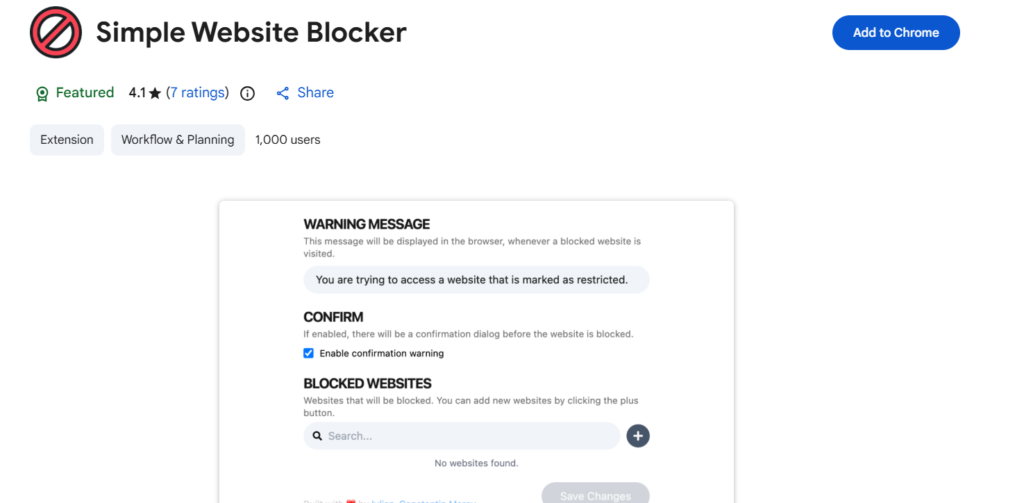
Best for: Blocking specific sites during study sessions.
Simple Blocker allows you to place websites into a block list, which is activated at certain times of day while you are studying. It is straightforward, low-friction, and does not require an account. Good for students who need a basic barrier between themselves and distractions.
Ad Blockers in 2026 (The Manifest V3 Situation)
This is worth knowing. Chrome’s Manifest V3 update, which changes how extensions can intercept web traffic, has affected how some ad blockers work. The original uBlock Origin is being replaced by uBlock Origin Lite, which has more limited blocking capabilities under the new rules.
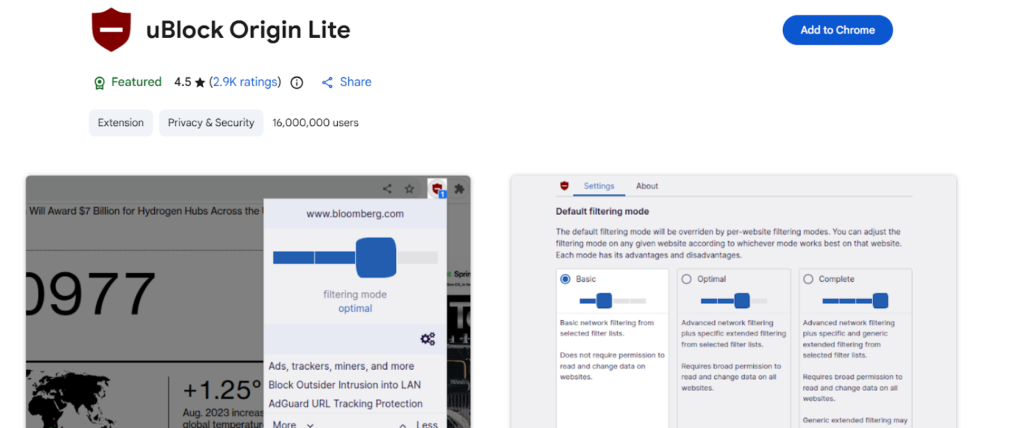
Students should note when installing their preferred AdBlocker that it should be marked as MV3 compatible and, most importantly, that it has been updated in recent months. Some extensions have not adapted well to the new platform and will act strangely.
If Your School Blocks Focus Extensions
Some school Chromebooks block extension installs entirely or block specific categories. If you find that a focus extension has been blocked, there are several alternatives you can use using standard Chrome settings. You can activate Chrome’s “focus mode”, you can contact your teacher or IT administrator to request that an extension be added to the school-approved list, or use the pomodoro technique by hand with any free timer tab.
Tab and Time Management (Stop Drowning in Open Tabs)
OneTab
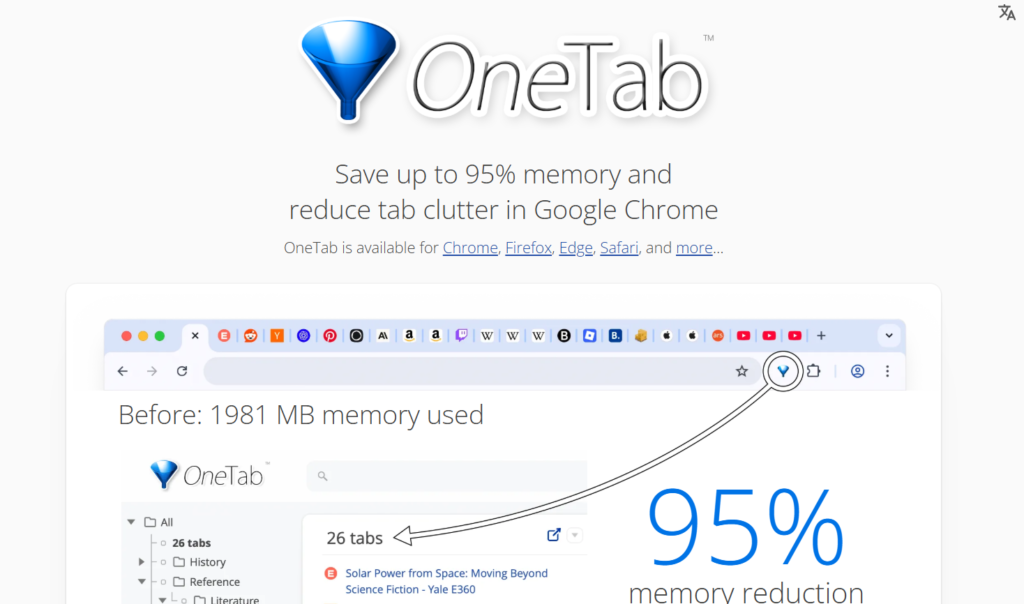
Best for: For those students who are doing research using multiple open tabs simultaneously. A simple solution that cleans up quickly.
Key features:
- Collapses all open tabs into a single list with one click
- Significantly reduces Chrome’s memory usage
- Restore individual tabs or all at once whenever needed
Limitations:
- Does not save tab groups or session names automatically
- No sync across devices on the free version
- Restoring all tabs at once can recreate the original chaos if overused
Chromebook likelihood: Generally, it will be allowed.
Permissions to watch: Can read and write information on every site you visit. Again, this is an overly broad permission to use an application that is simply a list of your tabs.
Clockify
Best for: Students who want to track how long they actually spend on different subjects or tasks.
Key features:
- Start and stop timers directly from the browser extension
- View weekly breakdowns of time spent by project or subject
- Free plan covers unlimited time tracking with no cap
Limitations:
- Requires manual timer management, and it will not track automatically unless you remember to start it
- Reporting features are more useful on the desktop than in the extension itself
- Takes a week or two of consistent use before the data becomes meaningful
Chromebook likelihood: Usually allowed.
Permissions to watch: Reads data on sites you visit. Low-risk permission scope.
Todoist
Best for: Students who wish to quickly document their task assignments without having to switch from one application to another.
Key features:
- Quick-add button in Chrome for capturing tasks the moment you think of them
- Syncs with the Todoist mobile and desktop app
- Free plan covers basic task lists across all devices
Limitations:
- Advanced features like reminders and filters require a paid plan
- Not a full project management tool, better for individual task capture
- Free plan limits on active projects can feel restrictive over time
Chromebook likelihood: Generally permitted.
Permissions to watch: The extension reads information about the current website only. This has got to be the narrowest permission scope in this list.
Teachers seeking to develop an educational version of a similar productivity stack can view this guide to the best AI tools for teachers to support productivity and organisation in classrooms.
Screen Recording and Explainer Tools (For Projects and Remote Classes)
Screencastify
Best for: Students who need to record their screen for presentations, project submissions, or study explainers.
Key features:
- Records tab, full screen, or webcam with audio
- Saves directly to Google Drive
- The free plan allows recordings up to thirty minutes
Limitations:
- Free plan adds a Screencastify watermark to recordings
- Video editing features are limited compared to standalone tools
- Requires camera and microphone permissions, which some school policies restrict
Chromebook likelihood: Usually allowed. Widely used in educational settings.
Permissions to watch: Access to the webcam, microphone, and screen is needed. For a screen recorder, this is very obvious, but you should check with your school about their permission process regarding the recording of screens, as they may have policies or restrictions related to the use of managed devices.
Accessibility and Special Needs Extensions (Make Reading Possible)
These extensions are organized by the specific challenge they address, not by popularity.
Text-to-speech and reading support: For full reading support, Read&Write has all the options. It reads text aloud from any page and provides full support for Google Docs, and is available at no cost to students via the school accounts.
Readability and visual processing: OpenDyslexic allows you to replace the default web font with a custom-designed typeface specifically created to help people with dyslexia read more easily. It works automatically across most websites without any setup.
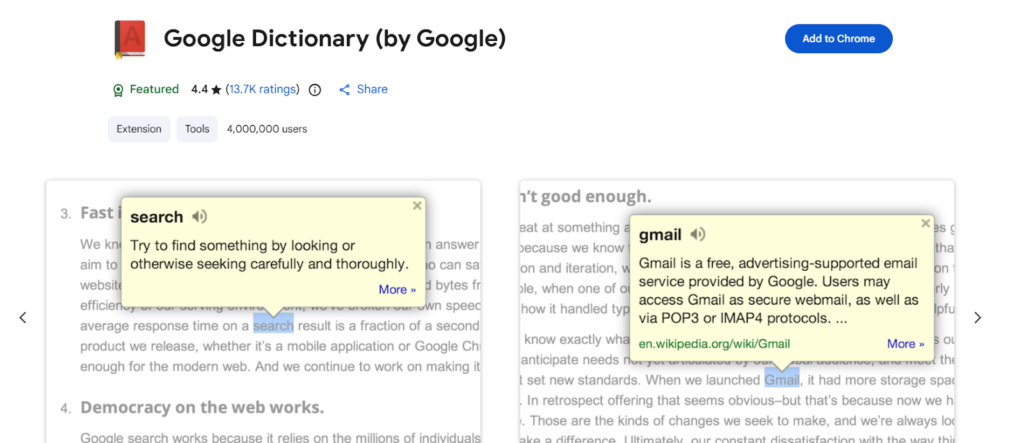
Reading comprehension: Google Dictionary will give you an immediate definition when you double-click on any word while browsing. This removes the constant friction of having to switch tabs to get definitions as students are trying to read dense academic texts.
Navigation: Vimium adds multiple keyboard commands for navigating your browser. If using a mouse is problematic or tiring for you, then using the keyboard may be a worthwhile investment.
Do Chrome Extensions Work on School Chromebooks?
The answer depends on how your school manages devices.
How Schools Allow or Block Extensions
Most schools manage Chromebooks through Google Admin using one of two setups. A blocklist allows most extensions except the banned ones. An allowlist blocks everything unless IT has specifically approved it.
Most restrictive schools use the allowlist model, meaning even Grammarly may not be installable without admin approval.
What to Do If an Extension Is Blocked
Check with your teacher first. Be sure to speak to them about it and explain why you need this type of citation tool in terms of your academic needs. Asking your teacher, “Can I use this citation tool for my research paper?” will generally get approval from your teacher.
Even if approval is not possible due to institutional policies, all grammar checkers, citation tools, and note-taking software provide access through their full web version so that you can utilize those features regardless of whether or not you download an add-on.
Privacy and Safety for Students, Teachers, and Parents
Are Chrome Extensions Safe for Students to Use?
Most Chrome Web Store extensions are safe. The problem is with the poorly maintained extensions, those installed from outside of Chrome’s webstore, and extensions that ask for too many permissions to perform their job.
Google automatically runs periodic security checks on all the webstore submissions that come in, but it would be safer to only add extensions from well-known developers, check what each extension wants to do before agreeing, and use Chrome’s Safety Check to report any problems with an extension you added after it has been running.
The Permissions Checklist
Before accepting any extension’s permissions, ask these questions.
- Does it need to read every website I visit, or just the current page? A citation tool that only needs to read the current page has no reason to request access to your entire browsing history.
- Does it need to change data on sites I visit? Some extensions legitimately need this, like grammar tools that need to edit what you type. Others do not.
- Does it ask for camera, microphone, or screen access? Only approve this for extensions where that function is the entire point.
Can Parents Control What Extensions Their Child Uses?
On school-managed Chromebooks, the school’s admin settings typically control what can and cannot be installed. Parents generally do not have override access to managed devices.
On personal devices, parents can use Google Family Link to manage a child’s Chrome profile and restrict extension installs. This works for accounts where Family Link supervision is active. If your older student uses a non-managed personal device, you should discuss how to safely browse instead of setting up additional technical controls.
Supporting Tools Beyond Extensions (Where Students Finish Strong)
While most add-ons can help with a particular issue, like grammar checking, citations, and tab management, no solution has been created for the ultimate final draft problem. These supporting tools can help fill that gap.
| Tool | Best For | Free Plan | Paid Plan |
| Walter Writes | AI humanization + detection check | Yes, limited | From $8/month |
| Proofademic | Academic AI detection, line by line | Yes, limited | From $8/month |
| QuillBot | Paraphrasing and sentence rewriting | Yes, limited | From $4.17/month (billed annually) |
| Notion | Notes, outlines, and project organization | Yes, generous free plan | From $10/month |
| Google Scholar | Finding credible academic sources | Free, no paid plan | Free |
Walter Writes
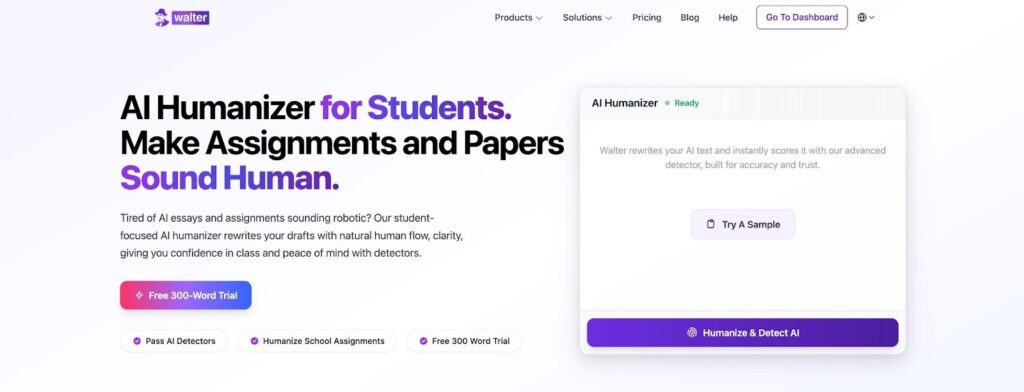
Walter Writes is built for the moment right before submission. Students can humanize AI-assisted drafts, restructure sentence rhythm, and check whether their writing will flag on detection tools like Turnitin or GPTZero. If you use AI tools anywhere in your writing process, you will find this the most practical final step before turning anything in.
Proofademic
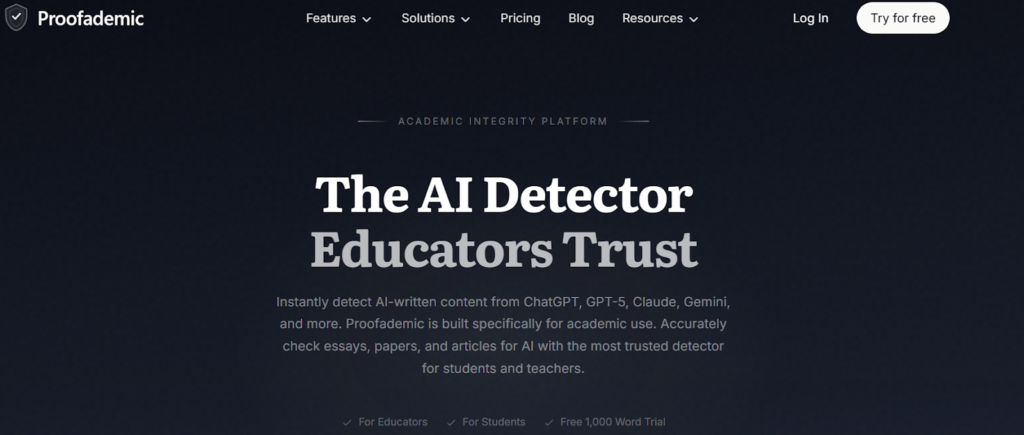
Proofademic is specifically designed to assist in Academic Writing. Line-by-line, it identifies areas of potential AI-detection risk and indicates which parts are written in a typical AI style. It also provides paragraph-by-paragraph analysis for students wanting to understand specifically where the problems lie, versus simply knowing if a problem exists.
QuillBot
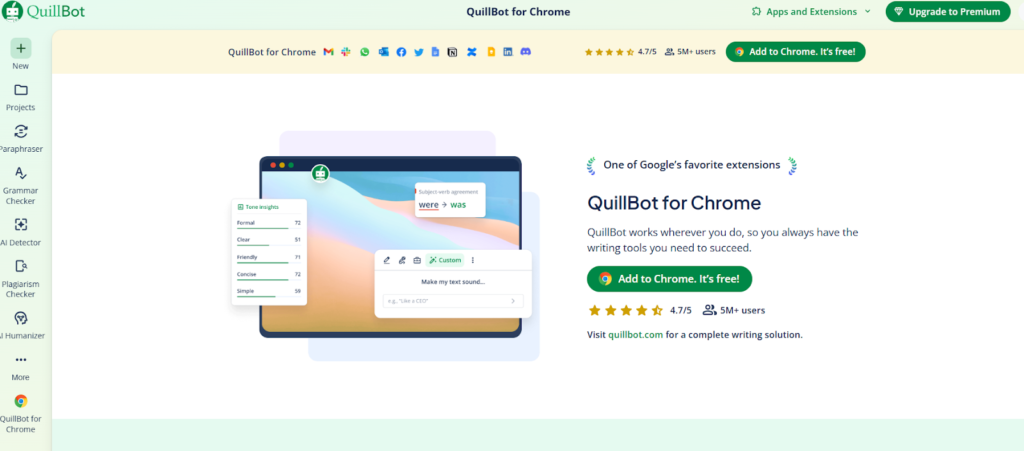
QuillBot is a paraphrasing and rewriting tool that helps students rework sentences that feel repetitive or unclear. It can be a helpful tool for fixing weak spots in a first draft or finding better wording for something you’ve already written.
Notion
Notion works as an all-in-one workspace for notes, research, outlines, and task tracking. For students who are working on multiple assignments at once, it provides a single location to store all of the materials and information related to those projects as opposed to having them scattered among open tabs, applications, and separate files.
Google Scholar
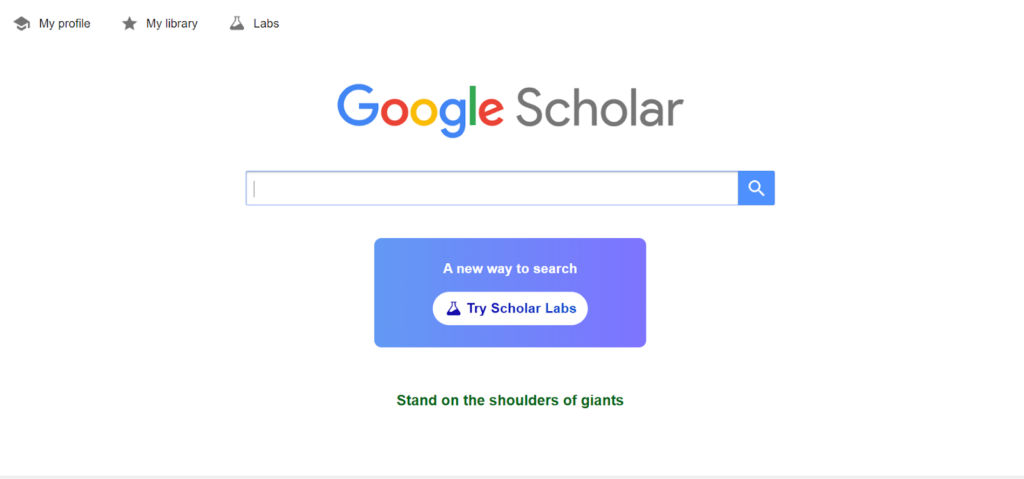
Not an extension, but worth mentioning here. Through Google Scholar, users will find relevant material from reputable databases that would otherwise require subscription fees. Additionally, it integrates seamlessly with Zotero Connector, which allows users to easily save sources into Zotero.
If your studying requires using AI in day-to-day work, then you should definitely consider reading this guide about the best AI humanizers tools to get you started.
Check Your Writing Before You Submit
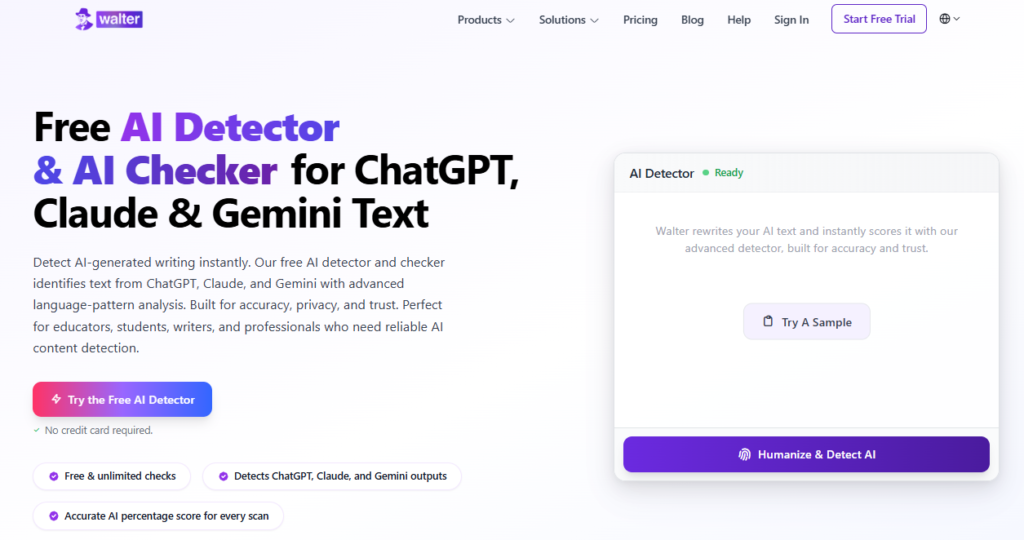
Extensions can take you a long way, from cleaner grammar to organized sources and fewer open tabs, but none of them handle the final integrity check. That’s where Walter Writes comes in. Before you submit anything, especially if you’ve used AI tools at any point in your research or drafting process, run your work through Walter Writes to catch detection risk and tighten up your writing in one place.
It’s free to try, and it takes less time than re-reading your paper for the fourth time. If you’re a student who wants to submit with confidence, Walter Writes is the last step worth adding to your workflow.
If you’re building out your student toolkit beyond writing and research, check out the best budgeting apps for college students to get your finances in order alongside your academics.
FAQs
Are Chrome Extensions Safe for Students to Use?
Generally yes. Just be sure to get them through the Chrome Web Store and read the list of allowed access rights before allowing them. Do not get an extension from anywhere other than the webstore. It is also a good idea to run Chrome’s safety tool on a regular basis.
What Chrome Extensions Do Most Schools Allow or Block?
This varies by school. Common allowlist approvals include Grammarly, Read&Write, and citation tools. Common blocks include ad blockers, VPNs, and any extension that modifies page content broadly. Contact your teacher or IT Department for your school’s specific policies.
Which Chrome Extension Is Best for Improving Grammar and Writing?
Grammarly is the most widely used and covers grammar, spelling, clarity, and tone. LanguageTool is a strong alternative, especially for multilingual students. Neither replaces careful manual editing before submission.
Are There Free Chrome Extensions for Students?
Yes. Most extensions on this list have free plans that cover the core functionality students need. Grammarly, Web Highlights, Cite This For Me, OneTab, Clockify, Read&Write (free for students through many schools), and Screencastify all have free tiers.
What Chrome Extensions Help With Focus and Avoiding Distractions?
If you’re looking for something simple to block websites when studying, Simple Blocker would be the best extension for that. To remove advertisement clutter, try an MV3-compatible ad-blocker such as uBlock Origin Lite. If your browser has extensions disabled, then using Chrome’s built-in focus features or a manual timer approach will also work.
Can Chrome Extensions Help With Citations and Referencing?
Yes. Cite This For Me generates one-click citations in APA, MLA, Chicago, and Harvard. Zotero Connector is better for longer research projects with many sources. Just always double-check your output before submitting it, since there are a lot of potential metadata errors.
What’s The Best Chrome Extension For Highlighting and Saving Research?
Web Highlights is the cleanest option for in-browser highlighting with a searchable library. Evernote Web Clipper works well if you already use Evernote for notes. Pocket is better for saving full articles to read later.
Do Chrome Extensions Work on School Chromebooks?
It depends on how your school manages devices. Allowlist-controlled Chromebooks only permit pre-approved extensions. If you find that one of these approved extensions has been blocked, please inform your teacher to forward an Educational justification to the IT department.
Which Chrome Extensions Are Useful for Special Needs or Struggling Students?
Read & Write provides Text-to-Speech, Open Dyslexic offers Dyslexia friendly font options, Bee Line reader allows you to see lines as you read to help track, and to find definitions for words while viewing websites, you can use Google dictionary. The majority of these Chrome extensions are either totally free or will work on a school-managed device.
Can Parents Control Which Chrome Extensions Their Child Uses?
On school-managed devices, the school admin controls this. On personal devices with Google Family Link active, parents can restrict Chrome extension installs through the Family Link dashboard. For older students on unmanaged devices, account-level controls are limited.