



TL;DR
Two ways to connect Walter to Codex. Both write to the same config, so pick one.
In the app, no terminal
- Settings, then Plugins
- Add, then Add MCP server
- Name it, set type to Streamable HTTP, paste the URL
- Save, restart if prompted
- Click Authenticate, approve in the browser
The server URL to paste in step 3:
https://mcp-server.walterwrites.ai/mcpIn the terminal
codex mcp add walter-writes
    --url https://mcp-server.walterwrites.ai/mcp

codex mcp login walter-writes

codex mcp listThen: prompts to copy · timeouts · approval controls · settings reference
Codex writes fast. It does not judge whether the result reads like a machine wrote it, and it has no way to rewrite for rhythm rather than correctness. That is the gap this connector closes.
Connect Walter over MCP and Codex gets three new tools: humanize, detect, and batch humanize. Because your text is usually already in files, you never paste anything. You point Codex at the file and it handles the round trip.
The 60-Second Setup
Three commands. No API key, because Walter authenticates over OAuth and Codex has a built-in login command for exactly that. One prerequisite: if codex --version returns command not found, skip ahead to the desktop instructions below.
1. Add the server
codex mcp add walter-writes --url https://mcp-server.walterwrites.ai/mcp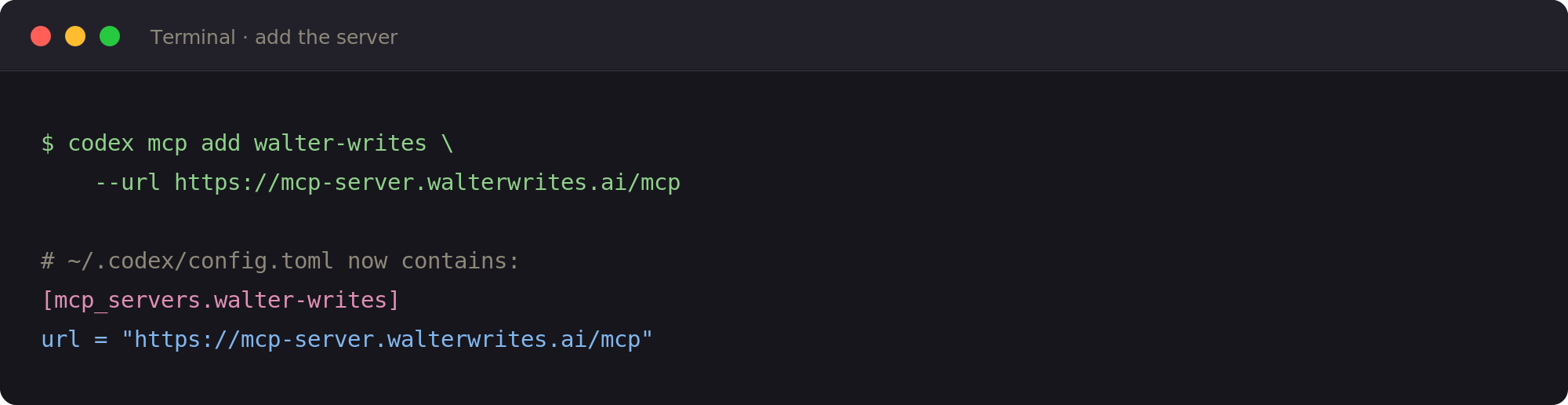
~/.codex/config.toml for you. You can also add that table by hand if you prefer.2. Log in
codex mcp login walter-writes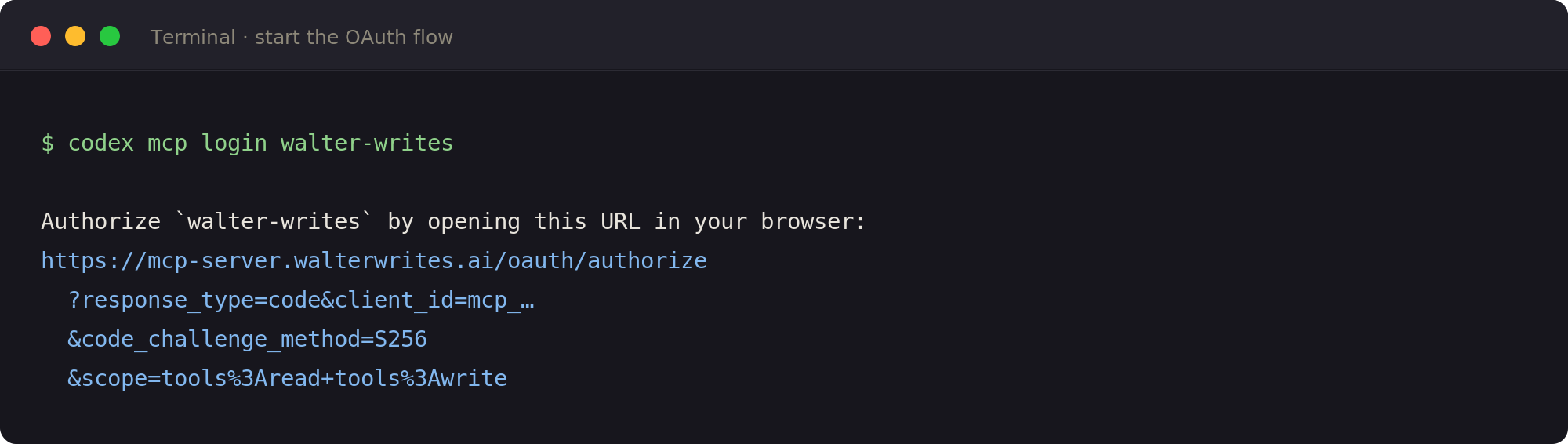
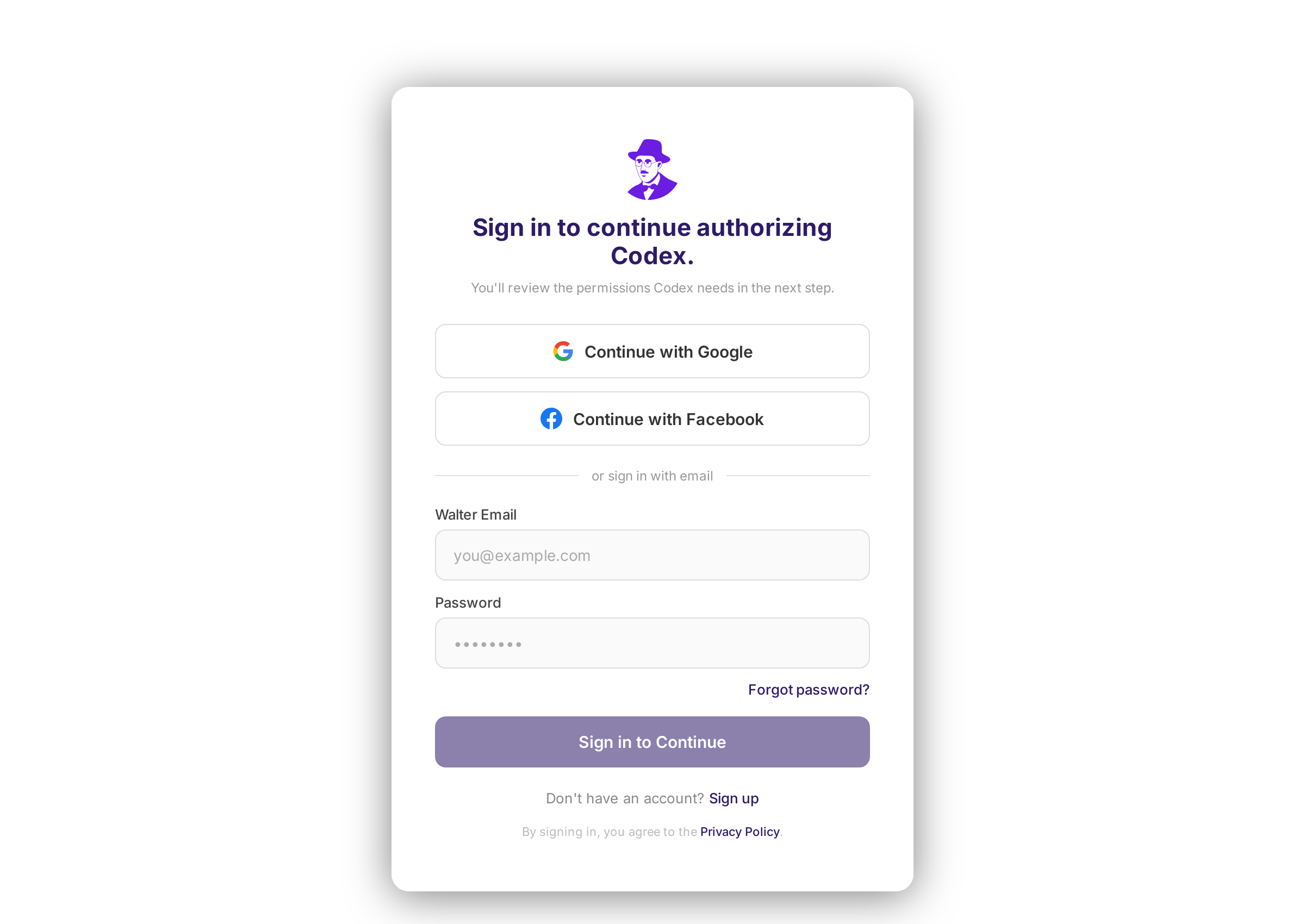
tools:read and tools:write.Codex prints an authorization URL and opens it in your browser. If it cannot launch one, it says so and you copy the URL across yourself. Approve the consent screen and the token comes back automatically. You do this once per machine, and nothing sensitive ever lands in a config file.
3. Confirm it worked
codex mcp get walter-writes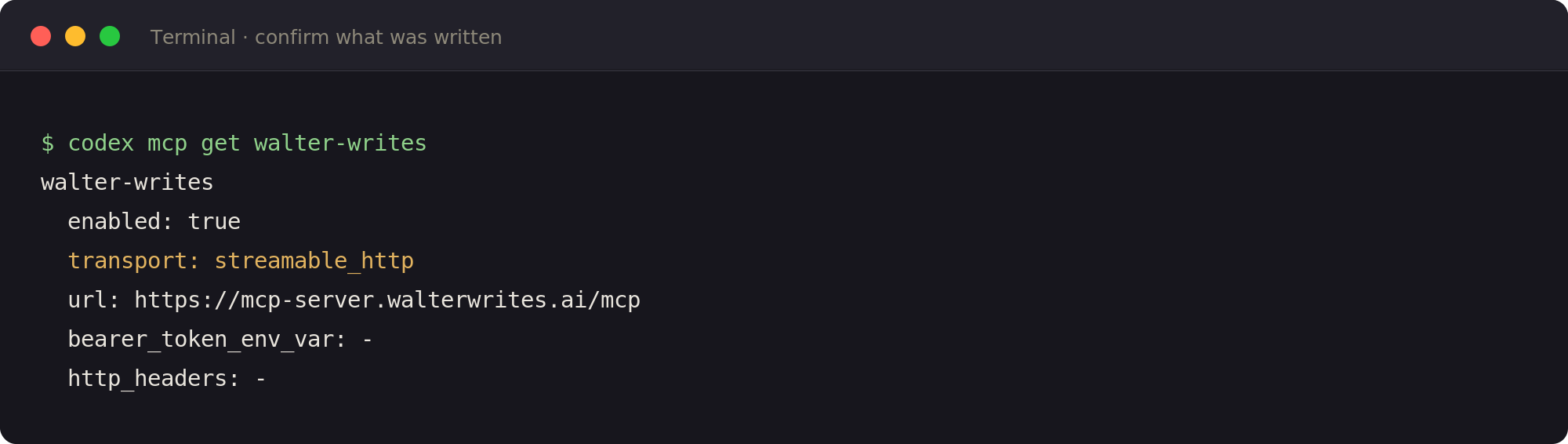
codex mcp get confirms what was written, including the transport.codex mcp list gives the same confirmation as a one-line table across every server you have configured. Either way, that is the whole setup: the Codex CLI and the IDE extension read the same config.toml, so doing this once covers both.
Set It Up Without the Terminal
If you would rather not touch a config file, the Codex desktop app does the same job through settings. Both routes write to the same place, so pick whichever you prefer.
Open Settings, then Plugins
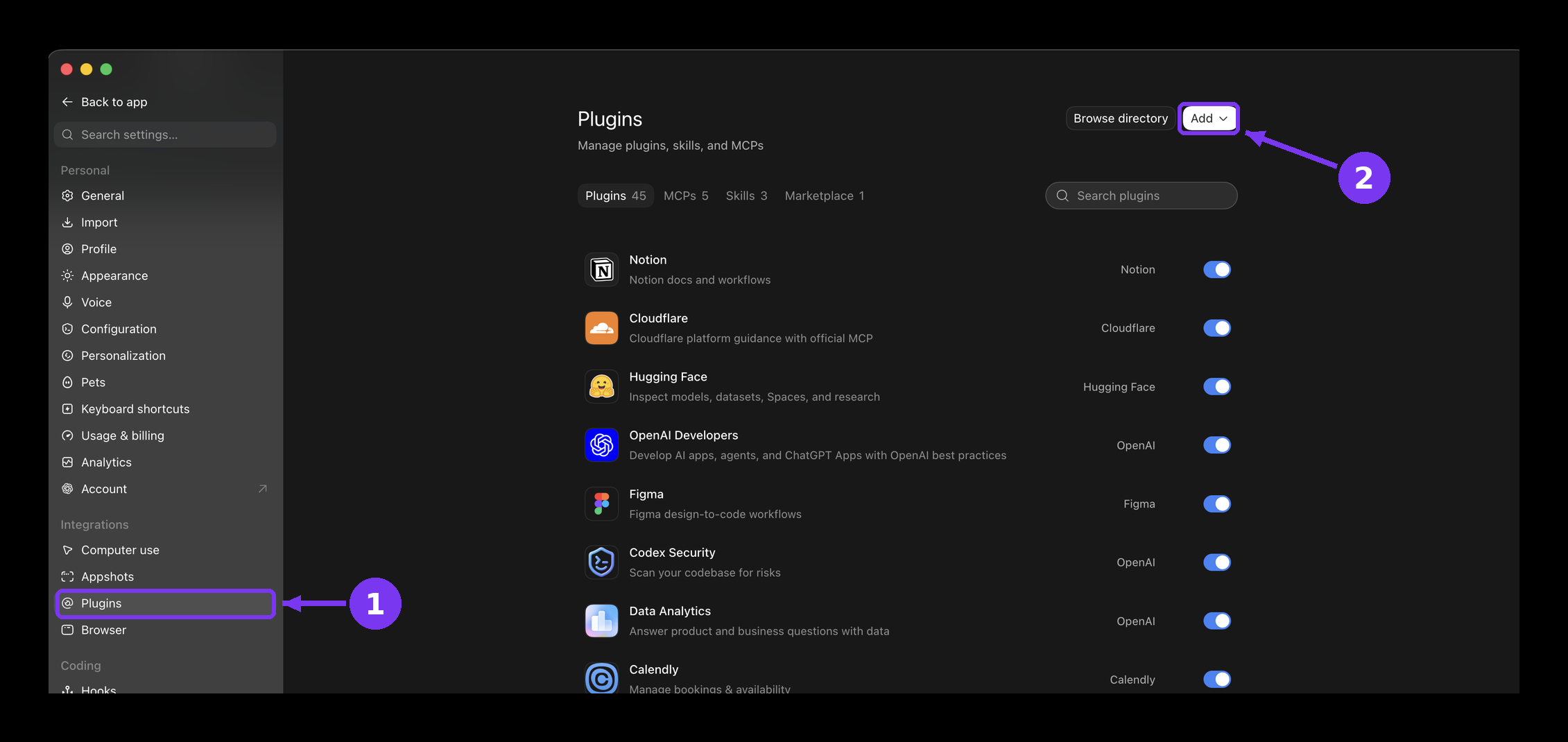
Choose Add MCP server
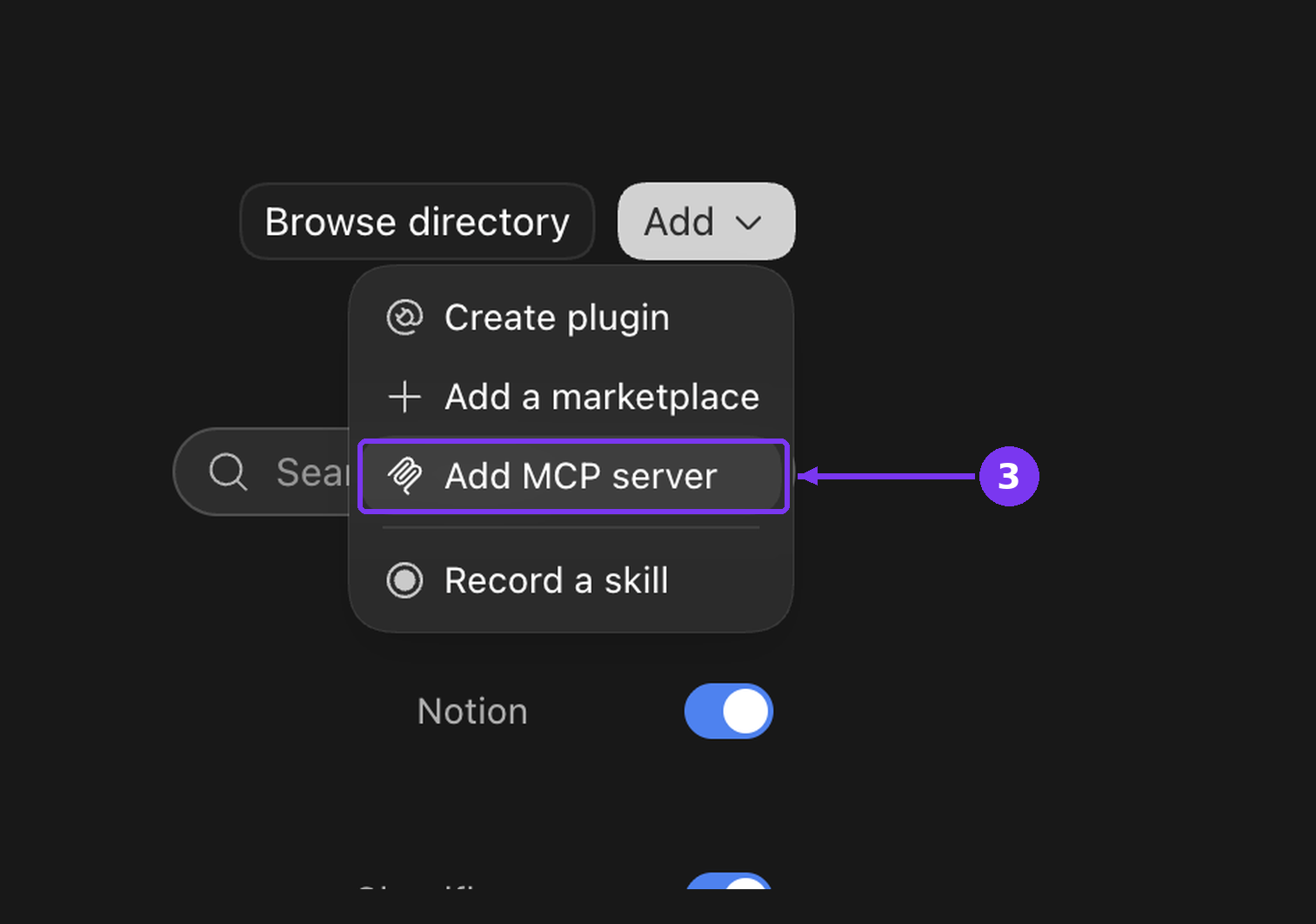
Fill in three fields and save
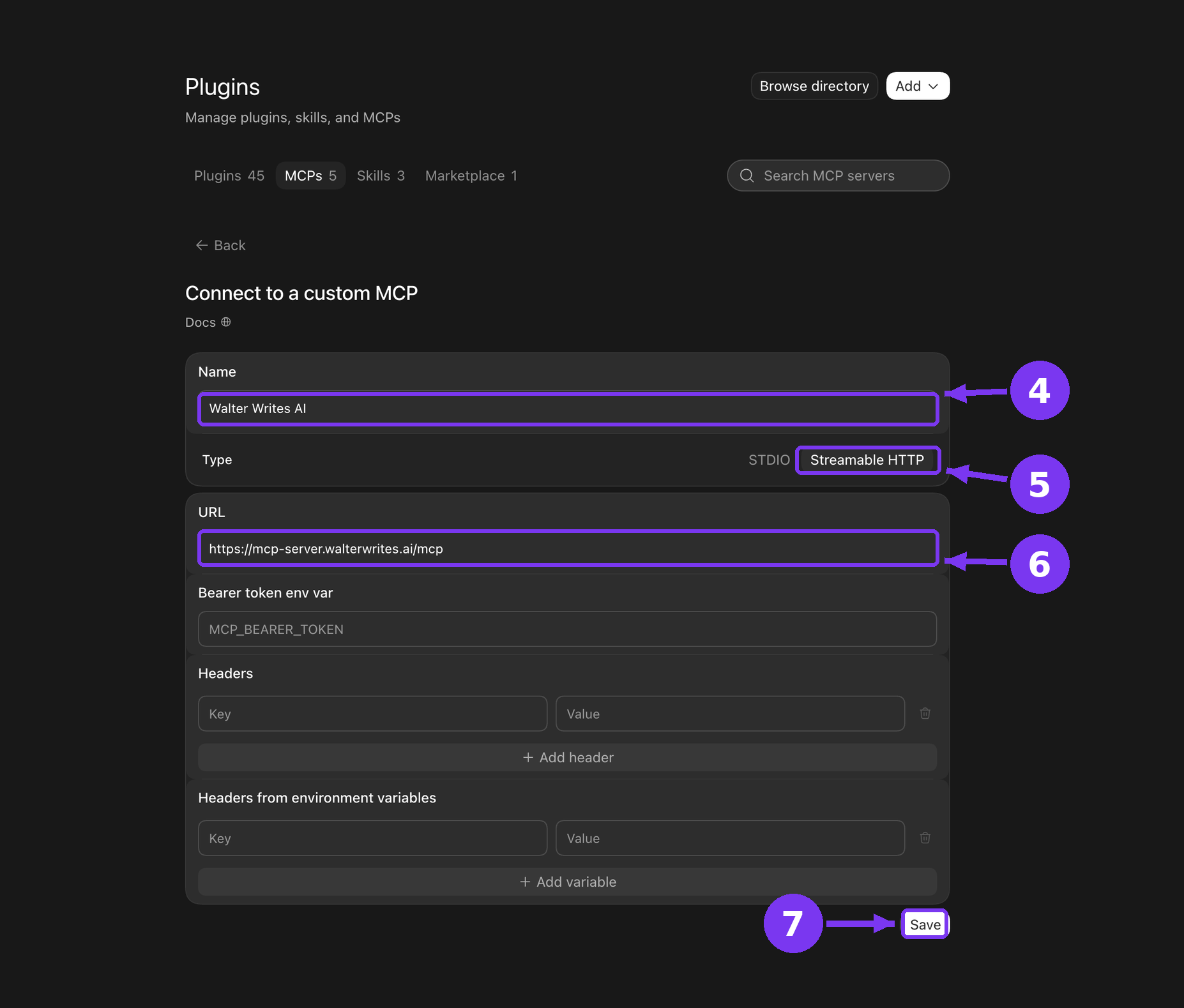
Leave Bearer token env var and both header sections empty. Walter uses OAuth, so there is no key to paste. The URL is:
https://mcp-server.walterwrites.ai/mcpAuthenticate
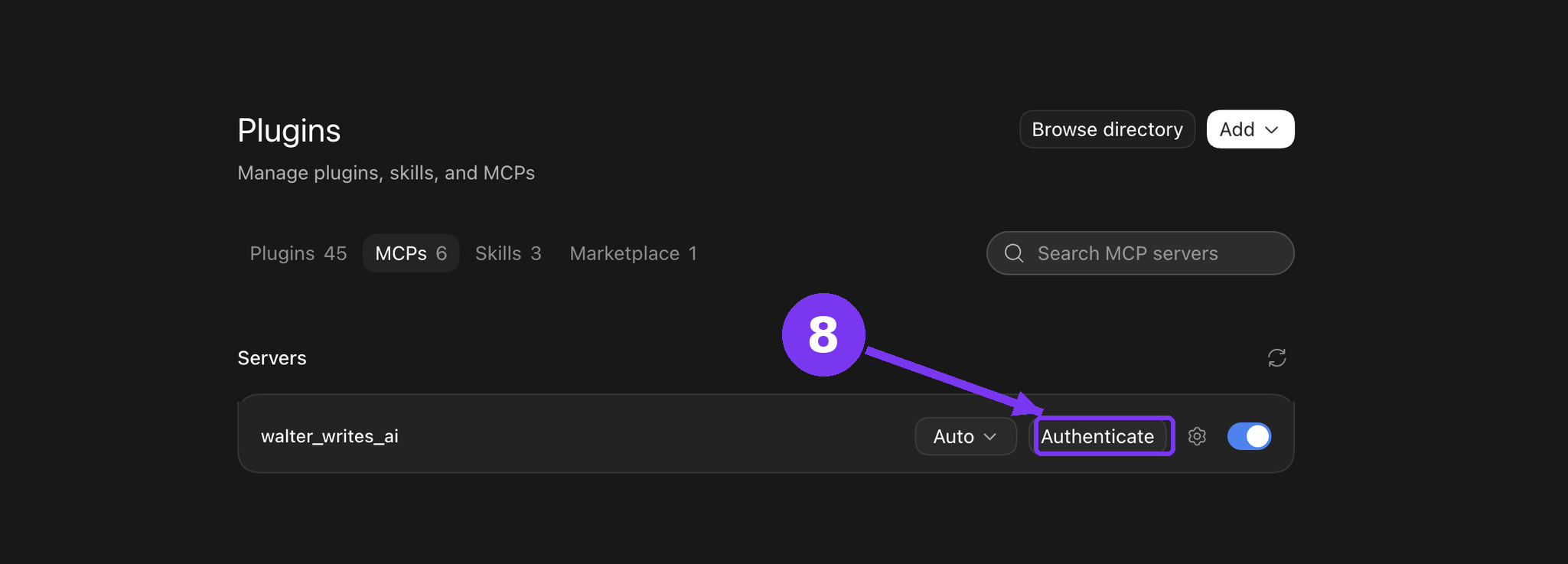
That opens your browser on Walter’s authorization page, the same one the CLI uses. Approve it and the connection is done.
Check it, then try it
Start a fresh Codex task and run /mcp to confirm Walter is listed. Then paste this to see it work:
Use Walter's walter_humanize tool to rewrite:
"Our weekly update brings project notes and upcoming deadlines
into one place so everyone knows what needs attention."
These are the settings steps described in the official Codex MCP documentation. Interface labels shift between builds, so if a label here does not match your version, that page is the authority.
What Walter Does Inside Codex
You do not call the tools directly. You ask for the outcome and Codex picks the tool, the same way it decides to read a file or run a command.
| Tool | What it does |
|---|---|
walter_humanize | Rewrites AI-sounding text into natural prose. Preserves meaning, keywords, entities, URLs and document structure. |
walter_detect | Returns a score from 0 to 100, a verdict, and the high-risk spans, with explanations when you ask for them. |
walter_batch_humanize | Processes many texts in one run with shared defaults and per-item overrides. One failure does not kill the batch. |
Prompts You Can Copy Right Now
Rewrite a file in place
Humanize the body copy in content/launch-post.md. Keep every H2,
the product names, and the two outbound links exactly as they are.
Write the result back to the same file.
Check before you publish
Run AI detection on content/launch-post.md and explain the flagged
spans. Do not rewrite anything yet, just show me the score and what
triggered it.
The full loop in one instruction
Detect, then humanize, then detect again on draft.md. Show me the
before and after scores. If the second score is not lower, tell me
instead of trying again.
Batch a whole directory
Humanize every .md file in content/products/ with batch humanize.
Leave frontmatter untouched. Report which files failed rather than
stopping at the first error.
That last sentence matters. Batch humanize returns partial results when one item fails, so an over-length file does not sink the run. Telling Codex to report failures instead of retrying stops it spending your word allowance on a doomed item.
Timeouts for Long Documents
Two defaults are worth knowing before you run anything long. Codex documents tool_timeout_sec as 60 seconds and startup_timeout_sec as 10 seconds. Whether a given humanize or batch job fits inside 60 seconds depends on the length of your text and your connection, so if a call gets cut off rather than returning an error from Walter, the timeout is the first thing to check.
Both are configurable. Raising them costs nothing when jobs finish quickly, because the timeout only applies when a call is still waiting.
Controlling What Codex Can Call
An agent that can quietly push a thousand product descriptions through a paid API is worth keeping on a leash while you learn its habits. Codex gives you three levers, all in the same table.
A sensible starting point: let single humanize and detect calls run freely, and make the batch tool ask first.
Use the server ID already saved in your configuration. If you followed the desktop screenshots, your server was saved as walter_writes_ai, so edit [mcp_servers.walter_writes_ai] and use that same ID in the per-tool settings below. Codex stores settings under the named server entry, so the name must match exactly.
[mcp_servers.walter-writes]
url = "https://mcp-server.walterwrites.ai/mcp"
tool_timeout_sec = 180
startup_timeout_sec = 20
default_tools_approval_mode = "auto"

[mcp_servers.walter-writes.tools.walter_batch_humanize]
approval_mode = "approve"
Whole Machine or One Project
Everything above assumes ~/.codex/config.toml, which applies to every session. To scope Walter to a single repository instead, put the identical table in .codex/config.toml inside that project. Codex only reads project-scoped configuration in trusted projects.
Settings Reference
Descriptions and defaults below are taken from the official Codex MCP documentation. Where the docs state a default it is given; where they do not, the column says so rather than guessing.
| Key | What it controls | Default |
|---|---|---|
url | The server address. This is the one key a Streamable HTTP server cannot go without. | required |
tool_timeout_sec | Timeout in seconds for the server to run a tool. | 60 |
startup_timeout_sec | Timeout in seconds for the server to start. | 10 |
enabled | Set false to disable a server without deleting it. | optional, no stated default |
required | Set true to make startup fail if this enabled server cannot initialize. | optional, no stated default |
enabled_tools / disabled_tools | Tool allow list and tool deny list. The deny list is applied after the allow list. | optional, no stated default |
bearer_token_env_var | Environment variable name holding a bearer token to send in Authorization. Not needed with OAuth. | optional |
mcp_oauth_callback_port | Top-level key. Use when your OAuth provider requires a fixed callback port. | ephemeral port |
mcp_oauth_callback_url | Top-level key. Base callback URL, for cases such as a remote host with its own ingress. Register the full derived redirect_uri, not just the base. | optional |
Configuration lives in ~/.codex/config.toml, or in .codex/config.toml inside a trusted project. The CLI and the IDE extension read the same file.
Try It
Finish by making a real call. A server in the list and an Authenticate button do not by themselves prove a humanize will run, so ask Codex to rewrite one paragraph and check the text comes back.
Walter works the same way across Codex, Claude, Gemini CLI, ChatGPT and any other MCP client. One account, one consent screen, the same three tools everywhere. Full setup guides for every client live in the MCP documentation.
Config keys and defaults in this guide were checked against the official Codex MCP documentation on 4 September 2026. Codex marks MCP features by maturity and these details move, so if something here does not match your build, that page is the authority.