




Key Takeaway: The best online whiteboard tool for teachers and students in 2026 depends on how students join, what your school already uses, and how structured sessions need to be.
- Miro Lite requires no account and lets students join instantly, but boards delete after 24 hours
- Microsoft Whiteboard is the strongest pick for Microsoft 365 schools with Teams integration and teacher controls
- Mural is best for structured workshops with timers, voting, and private brainstorming built in
- Canva has the strongest template library but weaker live collaboration than Miro or Mural
- Google Jamboard ended in 2024. Miro Lite and Canva are the closest free replacements
- Always test how students enter and leave the board on the actual devices used in class
Group brainstorms should not feel like chaos. If you do not use the correct tools, your ideas may become lost and disorganized. One individual writes everything down, and nothing useful gets saved.
Online whiteboard tools provide individuals with a collaborative canvas for real-time collaboration and teamwork. So when you leave the room, everything that was discussed will be documented.
But many whiteboard tools online are developed specifically for business teams. An online whiteboard designed for a product development sprint can fall short in a classroom environment.
In this guide, you’ll find out the best online whiteboard tools for teachers and students in 2026. Each review includes what it’s good for, limitations, and the pricing program. You’ll also know whether or not they would be suitable for a classroom and how well each has performed under actual usage.
What Is an Online Whiteboard Tool (And How It Works in Real Time)?
An online whiteboard is a browser-based drawing space for two or more users to simultaneously create content such as writing, drawing, creating sticky notes, and moving ideas about on one board from anywhere using any device.
A few key terms that are sometimes confused with each other:
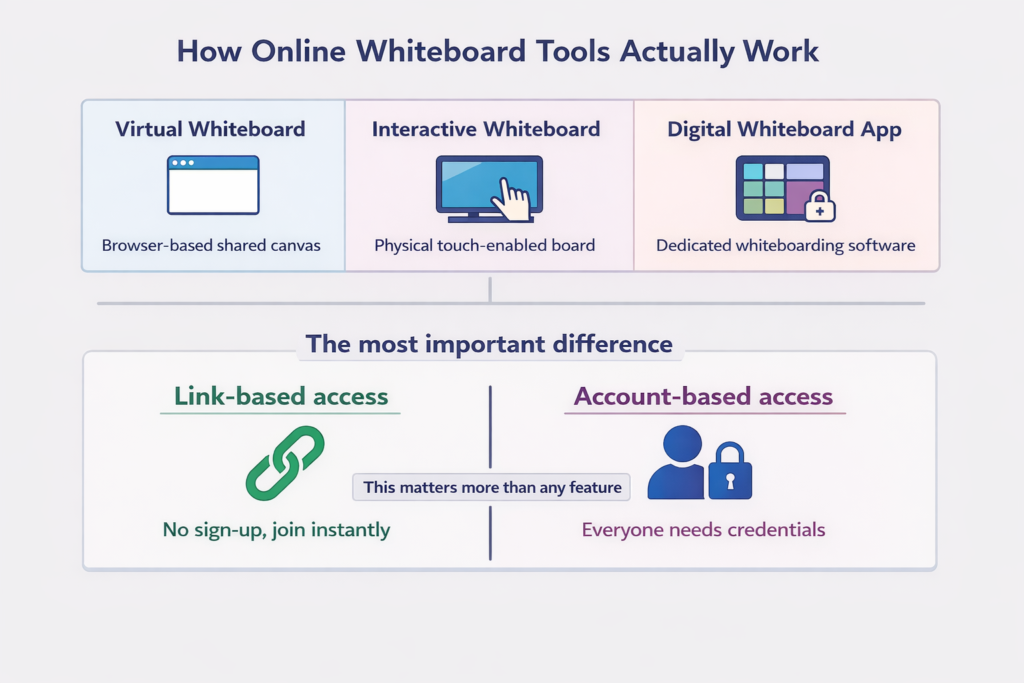
A virtual whiteboard is the general term for any shared digital canvas you access through a browser, no software installation needed.
An interactive whiteboard usually refers to physical hardware like a classroom smartboard that responds to touch. Some apps blur this line by supporting stylus input on tablets.
A digital whiteboard app means a dedicated tool built specifically for whiteboarding, as opposed to a whiteboard feature built into Zoom or Teams.
The most important practical difference between tools is how sharing works. While some whiteboards share simultaneously through links requiring little or no setup, others require each user to create a login before they can collaborate. For teachers managing a class of 30 students, this distinction will likely be much more significant than nearly all the features listed.
The Classroom-First Checklist: What to Look for (Teachers + Students)
Most whiteboard comparisons rank tools on features that matter to product teams. But here are the things that really make a difference in the classroom.
- Set up friction: Do all of the students have to be logged into an account for them to connect with each other, or can they join through a single link?
- Collaboration quality: Will all users have access to their peers’ live cursors, comments, and reactions without the paid subscription?
- Teaching controls: Is there an option where the teacher can prevent anyone from adding anything new?
- Education templates: Are concept maps, graphic organizers, and KWL charts built in?
- Export and hand-in: Can boards be exported as PDF or PNG, or shared via a link to an LMS?
- Device fit: Does it work smoothly on Chromebooks and tablets?
- Integrations: Does it connect natively to Google Classroom or Microsoft Teams?
- Privacy basics: Is student data stored, and does the tool meet school privacy requirements?
In order to find the right tool for your classroom, you need to score it based on which two or three of the above factors are the most important for your classroom. To review other educational tools used by teachers, visit our article reviewing the best tools for teachers.
Quick Recommendations: Pick Based on Your Scenario
Not sure where to start? Here are some good recommendations if you are in a hurry.
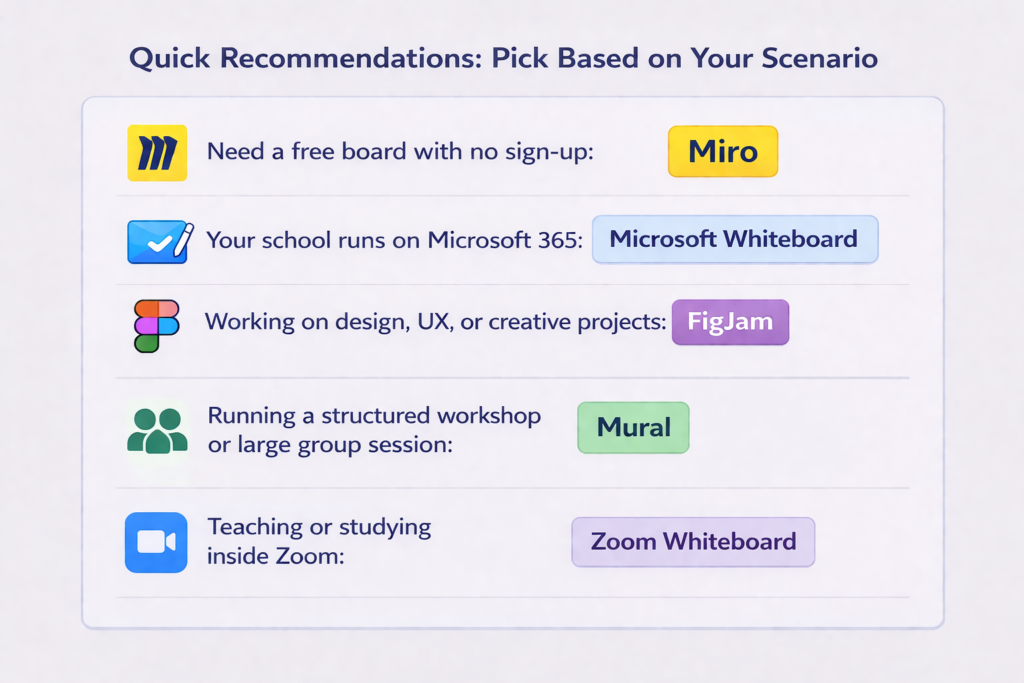
Need a free board with no sign-up: Miro
Students can join instantly via the link, no account required. Just note that boards are only saved for 24 hours unless you upgrade.
Your school runs on Microsoft 365: Microsoft Whiteboard
It is part of Microsoft Teams, and if you already have access to it, you won’t need to sign up for anything else.
Working on design, UX, or creative projects: FigJam
Fits well with teams that are currently using Figma as their primary tool. It is also ideal for individuals who think visually and need immediate feedback from others.
Running a structured workshop or large group session: Mural
Built for facilitated collaboration, with timers, voting, and private mode to keep sessions focused.
Teaching or studying inside Zoom: Zoom Whiteboard
Keeps everything in one place so you can stay in the same tab and don’t have to switch back and forth between multiple tabs.
There isn’t a specific product listed here that fits the exact way you do things? Then take a look at our chart comparing each product to see the free versions of each service, what information you’ll need to provide when signing up, and which other services they integrate with.
Comparison Table: The Best Online Whiteboard Tools (2026)
Here is a side-by-side look at how the top tools stack up on the criteria that matter most for teachers and students.
| Tool | Best For | Free Plan | No Sign-Up | Education Templates | Integrations | Exports |
| Miro | Both | Yes (3 boards) | Yes (Miro Lite, 24hr) | Medium | Slack, Jira, Asana, Google | PDF, JPG |
| FigJam | Both | Yes (3 files) | No | Low | Figma, Slack, Jira | PDF, PNG |
| Mural | Teachers | Yes (limited) | No | Medium | Teams, Slack, Jira, Zoom | PDF, PNG |
| Microsoft Whiteboard | Teachers | Yes | No (Microsoft account) | Low | Teams, OneNote, M365 | PNG, Email |
| Canva Whiteboards | Both | Yes | No | High | Google Drive, Slack | PDF, PNG, MP4 |
| Zoom Whiteboard | Both | Yes (basic) | No (Zoom account) | Low | Zoom, Google Drive | PDF, PNG |
| Lucidspark | Both | Yes (limited) | No | Medium | Google, Microsoft, Slack | PDF, PNG, CSV |
| Stormboard | Both | Yes (5 stickies) | No | Low | Teams, Slack, Jira | PDF, Word, Excel |
Note: Google Jamboard creation and modification ended in 2024. If you are still looking for a Jamboard alternative, Miro Lite and Canva Whiteboards are the closest free replacements.
Deep Dive Reviews: The Tools Students and Teachers Actually Choose Most
Miro (and Miro Lite For No-Sign-Up Boards)
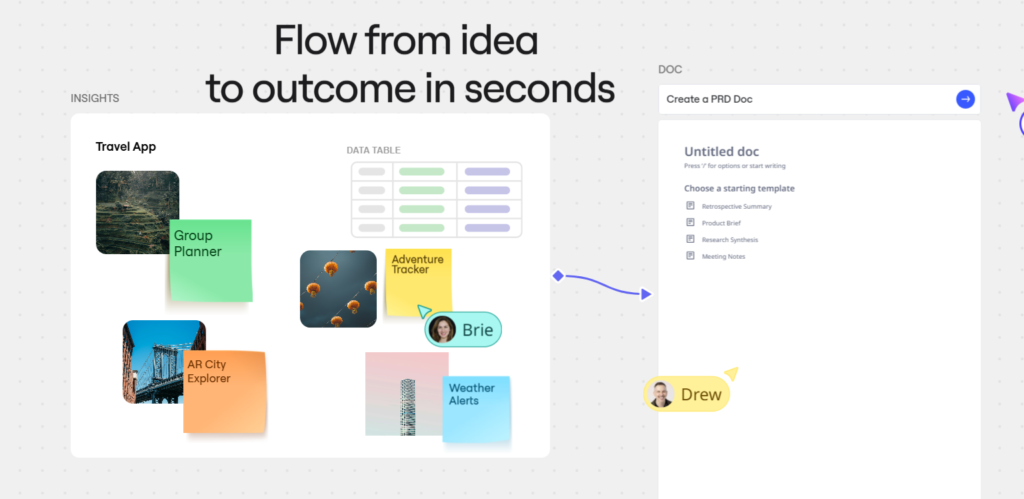
Best for: Both teachers and students who need instant, frictionless access.
The best choice is Miro Lite when you are looking for a board that can start up and has users collaborating on it in less than one minute. All you do is share the link to the board, and everybody else clicks on the link, and they can start working together right away.
Watch out: Boards created using Lite will automatically delete after 24 hours, so if you want to save some content from these boards, you’ll need to export them to another location, like a free Miro account, before the time runs out.
Free Plan: Gives you three permanent boards where you can use sticky notes, shapes, and also get a large number of templates.
Choose this: When you’re most concerned about how quickly you can get an account-free board online.
Skip this: If you need boards that will be online long-term without an upgrade.
FigJam (Best If You Are Already in Figma)
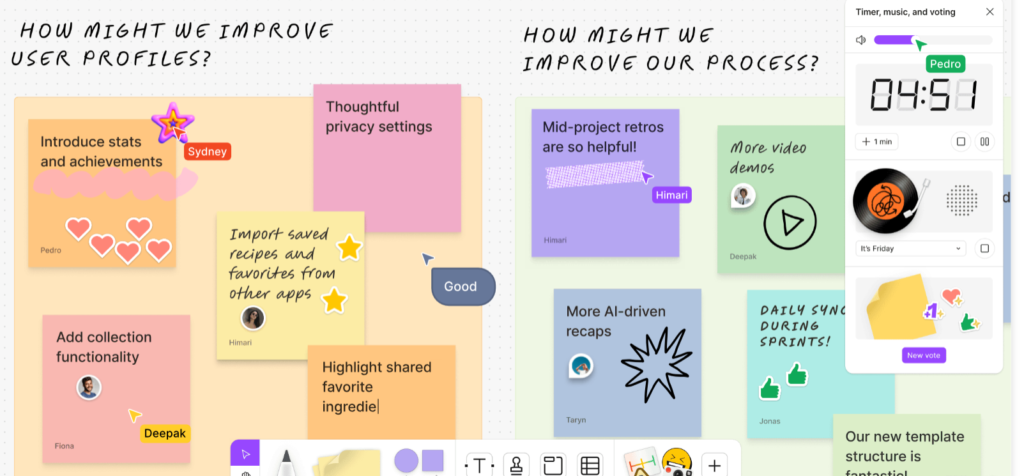
Best for: Students working on design, UX, or creative group projects.
It’s great for teams that are already using Figma. It is clean, speedy, and has collaborative features. This is especially good for design classes and project-based learning.
Free Plan: Three-file limit, which should be fine for many students to complete their own work. Not a strong choice for teachers if you want to control what your students can do or have educational templates available.
Choose this: If your work is primarily visual or design adjacent.
Skip this: If you require classroom moderation options.
Mural (Facilitated Sessions and Structured Workshops)
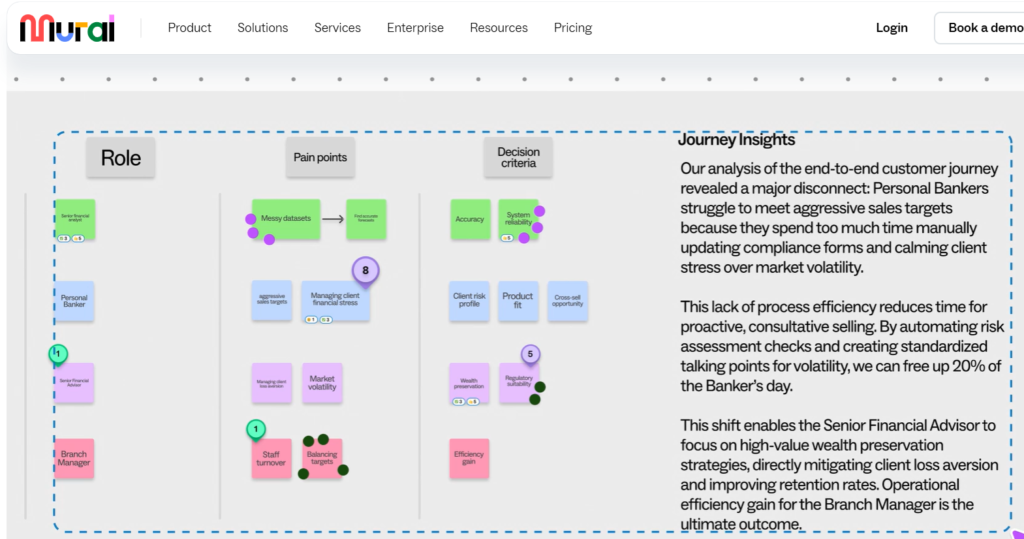
Best for: Teachers running structured group activities and workshops.
Mural will give your students a better experience when they want more than just an empty whiteboard. With some of its facilitation tools like timers, private brainstorming, and voting, which keep all sessions on track. The template library, it has many options for team building, retrospectives, concept maps, and project planning frameworks.
Free Plan: The free version limits the number of collaborators, so if you have large groups, you are going to quickly find yourself hitting a limit.
Choose this: When you have facilitated workshops or group work.
Skip this: If you want a simple, lightweight tool where students do not have to go through too much trouble to get into Mural.
Microsoft Whiteboard (Teams-Native Teaching and Controls)
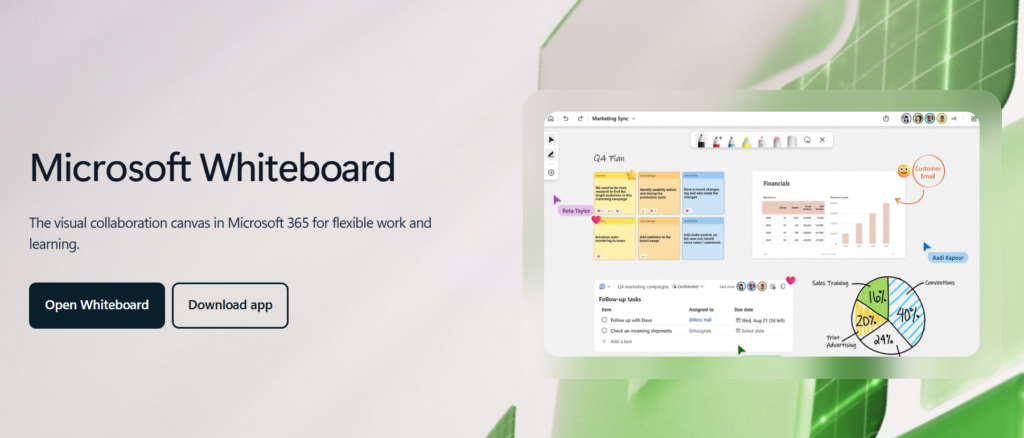
Best for: Teachers in Microsoft 365 schools.
If your school is currently using Teams, you are likely already set to use Microsoft Whiteboard. It can be used within Teams meetings, will persist beyond the meeting session has ended, and can be placed in read-only mode so that only teachers can share content with students.
Limitation: All users need a Microsoft account. This limits its use in some classrooms where multiple tools are being used, or devices cannot be provided to students.
Choose this: If your entire school district has moved completely to Microsoft 365.
Skip this: If your students do not have a Microsoft account.
Canva Whiteboards (Templates and Fast Classroom Visuals)
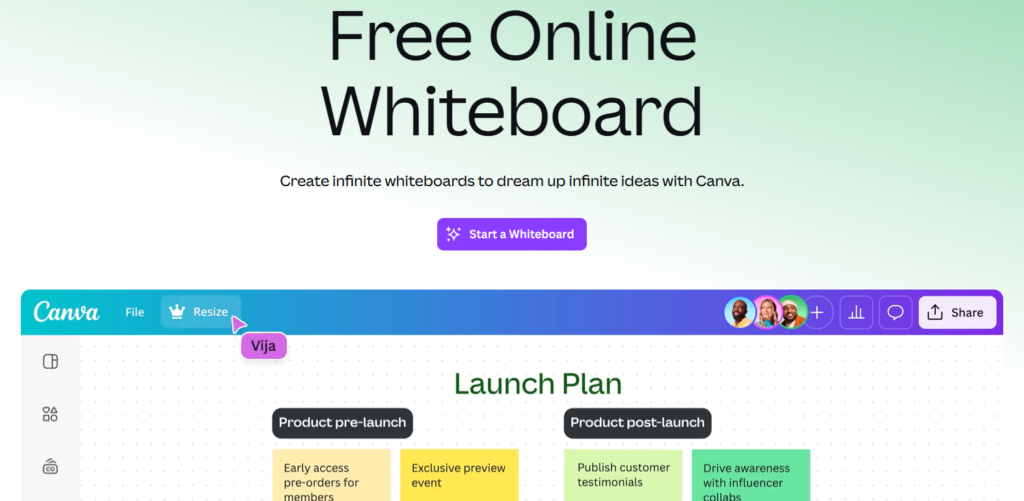
Best for: Teachers who want high-quality visual templates without a learning curve.
Canva’s large template collection has been added to whiteboards, which makes it a valuable resource for teachers as they create their lesson plans, presentation materials, and student projects. You can easily learn how to use it with no prior knowledge of using whiteboard tools.
Free Plan: The free plan offered by Canva is a generous one, but it does not offer the same level of live collaboration that Miro or Mural do.
Choose this: If your primary concern is templates and the visual look of your content.
Skip this: If you require extensive facilitation and collaboration options.
……………….
Zoom Whiteboard (Hybrid Teaching Inside Zoom)
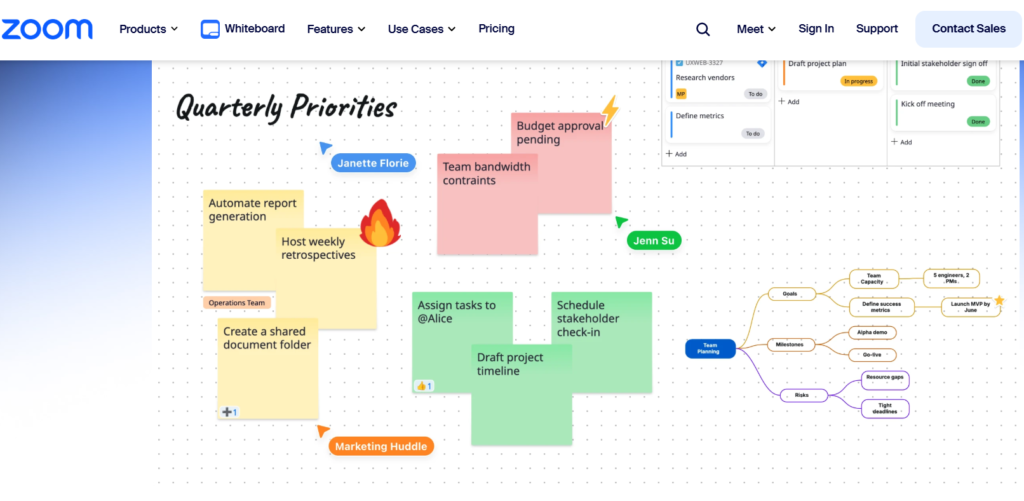
Best for: Teachers and students who live inside Zoom for classes.
Zoom Whiteboard allows users to avoid having to switch tools in the middle of a running session. It operates directly within a Zoom meeting, making it an advantage for hybrid and remote classes. Although the feature set is less robust compared with that of dedicated whiteboard solutions, Zoom Whiteboard can be very effective for rapid brainstorming or as an aid to visually describe concepts during a call.
Choose this: If you are using Zoom for classes.
Skip this: If you require a full-featured whiteboard solution that runs independently.
Lucidspark (Structured Ideation into Planning Workflows)
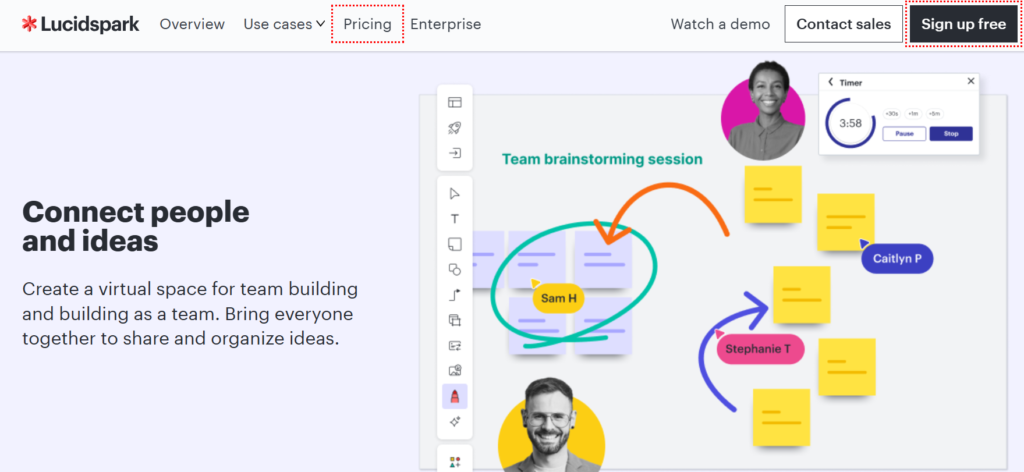
Best for: Students working on group projects that need to move from brainstorming to an action plan.
Lucidspark sits somewhere in between a whiteboard and a diagram application tool. Its strength is transforming a brainstorm full of ideas into a structure using its voting, grouping, and time functions.
Free Plan: While the free plan is limited, but just enough to see if the product will fit in your workflow prior to making a long-term commitment.
Choose this: When team collaboration goes past simply using sticky notes as a means to create some form of a plan.
Skip this: If you need a lightweight, non-obtrusive whiteboard for short, informal sessions.
Online Whiteboard vs Physical Whiteboard: What Is Genuinely Better for Learning?
Physical whiteboards won’t disappear. But an online whiteboard does several things that a whiteboard mounted to the wall simply can’t do.
Participation: Every single student has their own virtual cursor and space to input at the same exact time. Students may also participate more often because they don’t have to get up from their seats in order to present.
Artifacts: Virtual whiteboards provide the option to export them, share them via links, or save them for any students who were unable to attend class. Unlike a physical whiteboard, if you erase it, all your work is lost forever.
Accessibility: Many students will find typing to be a much faster way to express themselves than writing by hand. While a stylus on a tablet allows other students to continue drawing or writing, it provides options for students who like both methods of expression.
Trade-offs: Virtual whiteboards require access to technology and the internet. For small, simple and non-graded activities, a traditional whiteboard is still easier and quicker.
Teacher Workflows That Actually Work: Copy and Paste Lesson Patterns
Here are five ready-to-go patterns that can be implemented across all platforms.
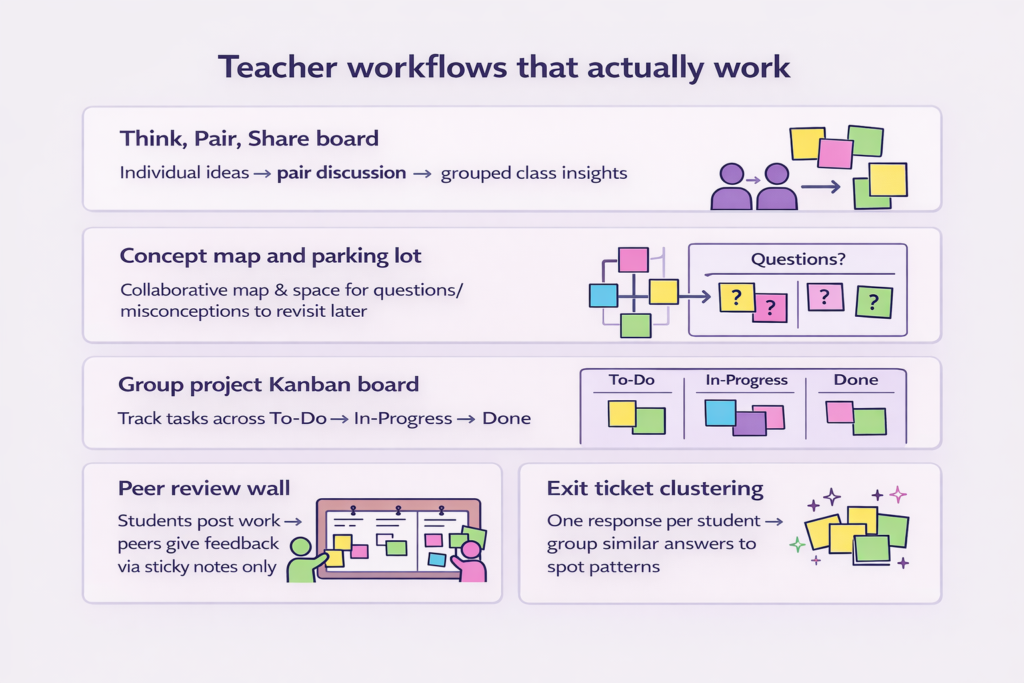
Think, Pair, Share board: Each student places one sticky note for the initial idea, shares ideas in pairs to create a new note representing each pair’s new thought. The teacher will then have the opportunity to categorize the new thoughts into groups of like-minded ideas.
Concept map and parking lot: Create a collaborative concept map for the entire lesson. Identify a designated area called a parking lot, also known as a question zone, that allows students to place notes with either misconceptions or unanswered questions that develop during the lesson. Answer them at the end.
Group project Kanban board: The Kanban Board has three zones: To-Do, In-Progress, and Done. Each team will be able to monitor their own task cards as they progress through the project.
Peer review wall: Each student posts their work in a designated zone. All students write comments on classmates’ work with only sticky notes. This way, no one can accidentally alter another person’s work.
Exit ticket clustering: For the final 5 minutes of class, all students create one sticky note with an answer for the exit question. Similar responses are grouped together to identify any possible patterns at the end of the class period.
For more ways to bring tools like these into your classroom, see our roundup of the best online collaboration tools.
Tech Stack Cards: The Complete Student and Teacher Collaboration Stack
An educator’s use of an online whiteboard is merely one segment in their overall process. Here is how the entire stack will look when completed for both teachers and students.
Card A: Teacher Stack
Good for: Teachers who are teaching in a hybrid or remote environment, facilitating collaborative projects, and assessing students’ written work.
Tools:
- Miro or Mural (Free or $10/month): Live collaboration and visual teaching
- Zoom or Google Meet (Free or $15/month): Video conferencing for online classes. See our guide to the best video conferencing tools.
- Google Classroom or Canvas (Free): Assignment distribution and grading
- Google Docs or Microsoft 365 ($6/month): Lesson materials and handouts
- Walter Writes (Free/ Paid starts from $8 per month): Rewriting lesson content for clarity and reviewing student writing for clarity and originality
Cost per month: $15 to $40, depending on tools and plan tiers
Limitation: Many of the no-cost services limit the number of live boards or collaborators at once, which is a constraint on many large classrooms. There is no cost to Microsoft Whiteboard, but all users must have a Microsoft account.
The next step after ending a whiteboard session would be converting those ideas into an organized draft with structure. AI humanizer for students by Walter Writes can help you do that without beginning from scratch.
Card B: Student Stack
Good for: Working together on group projects, developing ideas during brainstorming assignments, and giving students confidence when it comes to submitting their writing.
Tools:
- Miro Lite or Canva Whiteboards (Free): Brainstorming and group project planning. See our guide to the best project management tools for group work.
- Notion or Google Docs (Free): Turning board outputs into structured notes and drafts
- Canva or Google Slides (Free): Presenting whiteboard work to the class
- Quizlet (Free or $8/month): Reviewing key concepts from whiteboard sessions
- Walter Writes (Free or $8/month): Turning brainstorm notes into a clear human-sounding draft and checking originality before you submit using AI detection for students.
Cost per month: $0 to $16, depending on plan
Limitation: Boards made in the free version of websites like Miro Lite will automatically be deleted from the system after 24 hours. If you want to keep your board around longer than that, you’ll have to either export it to PDF or copy and paste the content into another program.
Explore useful student resources and more tools across both categories in our full library of the best AI tools for students.
Integrations That Matter in Schools: Google Classroom, Microsoft Teams, and Zoom
The whiteboard app you select should complement your school’s existing ecosystem.
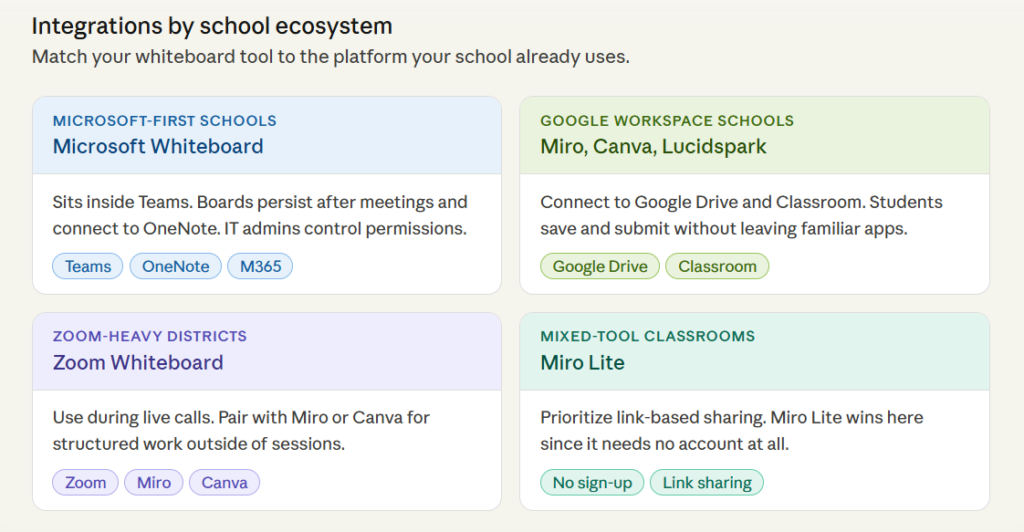
Microsoft-first schools: Microsoft Whiteboard within Teams makes sense. After meetings, boards remain available. OneNote integration allows teachers to add to their notes during meetings. In addition, the permissions are customizable by IT administrators.
Google Workspace schools: Miro, Canva, and LucidSpark allow students to save and export from these tools directly into Google Drive and Google Classroom. Students will never need to leave the classroom app.
Zoom-heavy districts: Use Zoom Whiteboard to collaborate while on a call. Consider Miro or Canva as alternatives for when students need to do more formalized group projects outside of meeting time.
Mixed-tool classrooms: For maximum flexibility, prioritize link-based sharing rather than relying heavily on native integrations. Miro Lite has some advantages as well because it doesn’t require a user account to access the free version.
A practical tip: before rolling out any whiteboard tool, try to replicate how the students will enter and leave the board on actual devices. A tool that works perfectly on a laptop may not work on a school-issued tablet.
Conclusion: Choose a Whiteboard, Then Complete the Workflow
There are three factors to determine which tool to select: How the students will use it? What does your school currently utilize? And how structured do the sessions need to be?
The whiteboard is only the beginning. Ideas and information written on the board must be organized in some manner so they may be turned into an accessible format for submission. This is the area where most writing applications do not provide a consistent means of organizing ideas.
Walter Writes bridges that gap as it provides an organized space for students to take their unorganized notes and turn them into a well-structured draft, or for teachers to review and assess student work as to its originality.
FAQs
What Are the Best Free Online Whiteboard Tools?
Miro Lite, Canva Whiteboards, and FigJam. Miro Lite allows users to create a whiteboard without signing up, but all content will be deleted after 24 hours. The strongest template and visual design options available on this list for free are through Canva.
What Is an Online Whiteboard Tool, and How Does It Work?
An online whiteboard tool is a shared canvas that is accessible via a web browser, which allows individuals to collaborate by creating sticky notes, drawing, typing, and moving objects around the board in real time, regardless of location or device.
Can Multiple People Use an Online Whiteboard at the Same Time?
Yes. Many of the listed whiteboard tools have collaborative capabilities, allowing many users to use them at once. They provide user cursor visibility so everyone involved can easily see their own cursor and the actions taken by others.
What Online Whiteboard Tools Work Best for Teachers?
Teachers may find Mural and Microsoft Whiteboard to be the most useful tools due to facilitation control and integration into LMS. They may also find value in using Canva for lessons requiring heavy amounts of pre-created template activity.
Is There a Free Online Whiteboard With No Sign-Up Required?
Yes, with Miro Lite, users can join any board using a single shared link without needing to create an account. The boards will be deleted by default after 24 hours automatically.
How Do Online Whiteboard Tools Compare to Physical Whiteboards?
Traditional whiteboards are simple and very inexpensive, but their ability to accommodate remote or hybrid classes is limited. Online whiteboards allow multiple students to input content simultaneously, save all content automatically, and provide a means for exporting the content for absent students.
What Features Should I Look for in an Online Whiteboard for Education?
When considering an online whiteboard tool for your classroom needs, make sure it has all the important things, such as no sign-up access, view-only mode, education templates, easy exports, and compatibility with Google Classroom or Microsoft Teams.
Which Online Whiteboard Integrates Best With Google Classroom or Microsoft Teams?
Microsoft Whiteboard works well with Microsoft Teams. Canva and Miro whiteboards are designed to be used with Google Classroom and can also be used as part of the Google Workspace setup.
Are Online Whiteboard Tools Secure for Classroom Use?
Most whiteboards will protect your students’ information in their privacy policy. But you should make sure that the whiteboard is FERPA compliant and has the appropriate compliance under GDPR.
What Is the Difference Between Miro, Mural, and FigJam?
They have unique features that make them better suited to different types of users. Miro offers the greatest flexibility in terms of its free version. It also does not require signing up prior to starting. Mural is the best option for structured facilitation. Figjam is more design-focused and would be ideal for teams who currently utilize Figma.